The Hidden Files That Made My Phone Think It Was Full (And How I Fixed It)

Over the past few weeks, I encountered a frustrating issue with my phone that led me to a deep dive into how smartphone storage actually works. Despite deleting multiple apps, photos, and videos, I noticed that my phone’s storage did not seem to update. Each time I checked the available space, the numbers remained almost unchanged, and this left me both confused and concerned. Initially, I assumed that I had mismanaged my storage, but the persistence of the problem suggested something deeper was at play.

My first step was to investigate the situation by consulting various sources. I reached out to several online communities, including official support forums for both Android and iPhone devices, and I also checked numerous tech blogs and troubleshooting guides. On one forum, the advice primarily focused on clearing cache and emptying the “Recently Deleted” folders, suggesting that temporary files and unremoved media could be causing the issue. Another source emphasized the importance of ensuring that cloud synchronization was complete, as partially synced files could still occupy local storage. Yet another expert recommended using the built-in storage management tools or performing a device restart to refresh system calculations.

Interestingly, while all the sources I consulted agreed that cached data and hidden files are major contributors to storage discrepancies, the recommended order of actions and the specific methods varied. Some guides suggested starting with software updates, while others focused on app-specific data cleanup first. The discrepancy likely arose from differences in phone models, operating system versions, and individual user experiences. For example, Android and iOS handle cached data and temporary files differently, and cloud storage solutions like Google Photos or iCloud add another layer of complexity. Some sources also appeared to prioritize quick fixes over systematic analysis, which might explain why the advice sometimes contradicted each other.

To better understand the situation, I devoted time to studying how phone storage systems work. I learned that when users delete content, it often does not immediately free up space because the system stores it temporarily in a “Recently Deleted” folder or as cached data. Apps like WhatsApp, Instagram, TikTok, and Telegram can retain hidden media files, which are not immediately visible in the gallery but still occupy storage. Additionally, I discovered that phones often recalculate storage usage with a slight delay, meaning that even after performing deletions, the available storage might not reflect these changes instantly. System updates and syncing with cloud services further complicate the scenario, as incomplete syncing can make it appear that storage is still full.

Armed with this understanding, I systematically applied the solutions I had learned.

I first restarted my phone to refresh system calculations, which led to a minor increase in available storage. Next, I cleared the cache of individual apps, focusing on those that stored large amounts of media. This step had a more noticeable effect, but the storage still did not fully reflect the deletions. I then checked and emptied the “Recently Deleted” folders for both photos and videos, which finally provided a substantial recovery of space. Afterward, I examined apps known to store hidden files and manually deleted unnecessary media. I also verified that cloud synchronization was complete and enabled “Optimize Storage” features where applicable. Finally, I ensured that my phone’s software was fully updated to the latest version, addressing potential bugs related to storage tracking.

After performing all these steps, I had to make a final evaluation regarding which measures were truly effective.

While restarting the device and clearing caches provided minor improvements, the most significant changes came from emptying the “Recently Deleted” folders, manually deleting hidden app files, and confirming cloud sync completion.

These actions collectively explained why my storage had appeared stagnant despite repeated deletions. I also realized that the discrepancies in advice I had received from different sources were understandable: some guides targeted quick fixes for specific devices, while others addressed the problem in a more systematic way. Understanding the underlying mechanisms allowed me to distinguish between temporary measures and long-term solutions.

Ultimately, I decided on a combination of measures as my final approach. I committed to routinely clearing caches and monitoring hidden app files, ensuring cloud synchronization was complete, and maintaining the phone’s software up to date. I also made it a habit to periodically empty the “Recently Deleted” folders to avoid storage buildup. This comprehensive strategy not only resolved my immediate storage issue but also provided a framework for preventing similar problems in the future.

By approaching the problem systematically and understanding the reasons behind storage discrepancies, I regained full control over my phone’s memory, alleviating both frustration and anxiety associated with unexpected storage limitations.

In conclusion, the experience taught me that phone storage issues are rarely caused by actual lack of space. More often, they result from cached data, delayed system calculations, hidden files, or incomplete cloud synchronization. By carefully studying the problem, consulting multiple sources, and applying structured solutions, I was able to identify the root causes and implement an effective strategy. This process reinforced the importance of patience, research, and informed decision-making when troubleshooting modern smartphone issues.

From Constant App Crashes to Smooth Performance: My Experience

When I first noticed that my apps kept crashing on my phone, I was immediately frustrated and anxious. It started subtly: sometimes a social media app would close unexpectedly, or a messaging app would freeze just as I was about to send an important message. Initially, I thought it was a minor glitch that would resolve on its own, but the crashes became more frequent and disruptive. For someone who relies heavily on their phone for both work and personal communication, these interruptions were particularly stressful. I realized that I needed to take this issue seriously and investigate the root causes.

My first step was to look into common explanations for why apps crash. According to the articles and guides I read, there are several major factors: outdated apps or operating systems, low storage space, software bugs, too many background apps running simultaneously, corrupted app data, and poor internet connections. I quickly checked my phone and noticed that I had not updated some of my apps for several weeks, and my device storage was nearing full capacity. This confirmed that at least part of the problem might be due to outdated software and insufficient storage space.

After identifying these potential causes, I sought professional advice. I contacted multiple customer support centers and visited a local electronics service store. At each place, I explained my issue and asked for recommended solutions. Interestingly, the advice varied somewhat between sources. One support center suggested that I first try clearing the app cache and updating the phone’s operating system. Another recommended uninstalling and reinstalling the apps, while a third emphasized checking for proper app permissions and managing background applications. There was also a suggestion to reset the phone completely, which seemed more extreme and disruptive than the other options.

The differences in recommendations puzzled me initially. Why did each place suggest a different course of action for the same problem?

Through careful consideration, I realized that each advisor approached the problem based on their own assumptions about what was most likely causing the crashes.

For instance, tech support representatives often see customers with older devices or phones running low on storage, so their first step was to address those issues. Others focused on app-specific issues because corrupted app files are a common reason for crashes. This explained why the advice varied: each solution addressed a different possible underlying cause.

To ensure that I made an informed decision, I began to study the topic more thoroughly. I read several online guides and troubleshooting articles that outlined systematic steps to prevent app crashes. From these readings, I learned that restarting the phone is often the quickest fix, as it clears temporary glitches and refreshes system processes. I also learned that keeping apps and the operating system updated is crucial because developers frequently release patches that fix bugs. Clearing app caches can resolve corrupted temporary files, and maintaining adequate storage—ideally leaving 10–15% free—ensures smooth performance. Other important steps include force-stopping apps when they are unresponsive, checking internet connections for apps that require network access, reviewing app permissions, and managing background processes to prevent system overload.

I applied these lessons methodically.

I first restarted my phone and observed whether crashes persisted. Next, I updated all apps and the operating system, then cleared the cache for the apps that had been crashing frequently. I also freed up storage by deleting unused apps, clearing old downloads, and moving photos and videos to cloud storage. After performing these steps, I noticed a significant improvement: the apps were much more stable, and the crashes became infrequent. I further ensured that all app permissions were correctly enabled and limited the number of apps running simultaneously in the background.

Finally, I had to make a decision about which approach to adopt as my standard method for preventing app crashes in the future. Based on my study and testing, I decided to implement a regular maintenance routine. This includes keeping apps updated, monitoring storage levels, periodically clearing caches, and restarting my phone at least once every few days. I also chose to be selective about which apps I keep installed, avoiding unnecessary apps that could consume resources and potentially cause instability.

By combining these strategies, I can prevent most crashes before they occur, without having to resort to more drastic measures like reinstalling the operating system or performing a factory reset.

In conclusion, the process of diagnosing and resolving app crashes taught me several valuable lessons. First, the causes of app crashes are often simple, such as outdated software or low storage, but they can manifest in ways that seem unpredictable. Second, consulting multiple sources can provide a range of solutions, but differences in recommendations are often due to different diagnostic assumptions rather than mistakes. Third, studying the problem in detail allowed me to understand the underlying principles behind each solution, enabling me to make informed decisions. Ultimately, by applying a combination of updates, cache clearing, storage management, permission checking, and mindful app usage, I was able to stabilize my apps and regain confidence in my phone’s performance. The experience reinforced the importance of proactive maintenance and the value of a methodical, informed approach to troubleshooting technology problems.

From Panic to Protection: How I Safeguard My Phone Data

Losing phone data is one of the most stressful experiences anyone can encounter.

A few months ago, I faced a situation that made me realize the importance of backing up my phone. One morning, I accidentally dropped my phone, and although it still turned on, I noticed that some apps were malfunctioning and a few of my recent photos and messages seemed to be missing. At first, I panicked because I had never consistently backed up my data. I quickly understood that relying solely on the device itself without any backup plan was risky.

That moment prompted me to investigate all possible ways to secure my data safely.

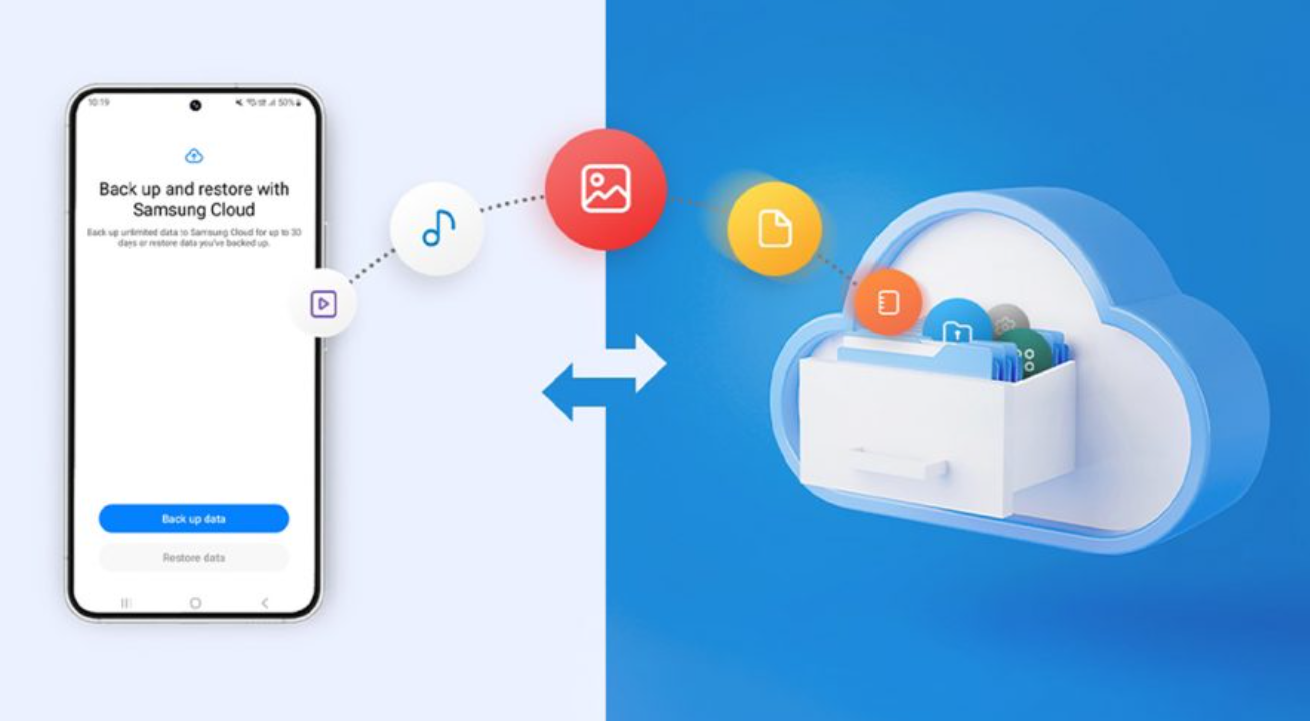
I started by exploring the most common method that people recommend: cloud backup. For my Android device, I checked the settings under Google Backup and enabled the “Back up by Google One” option. I also initiated a manual backup to ensure everything was stored in the cloud. For my friend who uses an iPhone, she recommended using iCloud Backup, where she had enabled automatic backups and ensured that all her contacts, photos, messages, and device settings were included. Observing both systems helped me understand that cloud backups were incredibly convenient and easy to manage. They also allowed data to be restored when switching devices, which was particularly reassuring.

However, I wanted to be thorough. I began consulting multiple sources to compare backup methods, including online tech forums, YouTube tutorials, and even tech store representatives. From these consultations, I discovered several options: cloud backup, backing up photos and videos separately through services like Google Photos or iCloud Photos, offline backups to a computer, and external storage methods such as USB drives or SD cards. The advice was not always consistent. Some tech advisors emphasized the security of cloud backups, while others stressed the importance of having a local copy on a computer or external storage in case of hacking or accidental deletion. One store representative even suggested using a combination of all methods for maximum safety, referencing the 3-2-1 rule: maintaining three copies of data, storing them on at least two different types of storage, and keeping one backup offsite.

The variations in recommendations puzzled me at first. I wondered why the advice was so different depending on the source. After analyzing the information, I realized it was largely due to differing priorities and potential risks. Cloud services prioritize convenience and accessibility, which is why they are recommended for most casual users. Offline backups, on the other hand, offer complete control and extra security, appealing to those who are more concerned about hacking or accidental cloud failures. Meanwhile, external storage provides an additional layer of protection but requires regular maintenance and vigilance to ensure the backups are up to date. Understanding these nuances helped me appreciate why no single method is universally considered the “best.”

To make an informed decision, I studied backup processes more deeply. I learned that automatic backups are crucial because manual backups are easy to forget, especially when life gets busy. I explored settings for automatic cloud backups, learning how to set daily or weekly schedules and how many services allow backups to run while the phone is charging. I also researched verifying backups, which is often overlooked; it is not enough to simply back up the data—you must ensure it is accessible, current, and restorable. I familiarized myself with file structures on both Windows and Mac for manual backups, and I practiced copying important folders from my Android phone to my computer, including DCIM (photos), Downloads, Documents, and other essential files. Finally, I studied using USB flash drives with OTG support and microSD cards as additional offline storage options.

After gathering all this knowledge, I established a clear strategy for myself. I decided to implement a combination of methods to ensure redundancy and security. First, I set up cloud backup through Google One for automatic daily backups. This covers contacts, app data, device settings, and messages. Then, I enabled Google Photos to back up my pictures and videos in high quality automatically. Next, I performed a full manual backup to my computer via USB, creating a local copy that I could access without relying on an internet connection. Finally, I stored critical files on a USB drive kept separately from my home, following the 3-2-1 backup rule. This approach gave me peace of mind, knowing that even if one backup method failed, others were available.

The final decision was influenced by a few key factors. Convenience was important, as I did not want to spend excessive time performing backups manually every week. Security was another priority, particularly for sensitive documents and personal photos. By combining cloud and local backups, I achieved a balance between accessibility and control. Additionally, implementing automated processes and verifying them regularly ensured that my data would remain safe over time. In essence, my final setup was not dictated by a single method but by the understanding that multiple layers of protection provide the most reliable security.

In conclusion, the journey of exploring phone backup options taught me several lessons. First, unexpected incidents can happen at any time, and relying solely on the phone itself is risky. Second, consulting multiple sources and comparing advice can help identify both advantages and limitations of different backup methods. Third, studying and understanding the backup processes allows for a more strategic and informed approach.

Ultimately, my decision to use a combination of cloud services, local computer backups, and external storage ensures that my phone data is safely protected.

Starting with one method and gradually building a comprehensive backup system has given me confidence that, regardless of what happens, my important data will remain secure and accessible. I can now focus on using my phone without the constant worry of losing precious information, knowing that my backup strategy is reliable, verified, and future-proof.

How I Secured My Phone Against Hackers and Malware

Recently, I began exploring ways to better protect my smartphone from hackers and malware. My experience started when I noticed unusual activity on my device—apps behaving strangely, unexpected pop-ups, and occasional slowdowns that seemed suspicious. As someone who stores almost all personal and professional information on my phone, including banking apps, messages, and sensitive photos, I became concerned that my device could be at risk. At first, I assumed it was just a minor glitch, but as I observed the behavior over several days, it became clear that I needed to take proactive steps to improve security.

The first thing I did was seek advice from multiple sources. I consulted online articles, technology forums, and official guides from reputable security companies. I also reached out to customer support from my phone manufacturer and asked them directly about best practices for keeping my device safe. Interestingly, I noticed that the advice varied slightly depending on the source. While most recommendations emphasized updating software and using strong passwords, some sources focused more on app permissions or the importance of security apps, whereas others highlighted cautious use of public Wi-Fi. This variety initially caused some confusion because each source seemed to prioritize different strategies.

Upon reflecting on these differences, I realized that the variation arose mainly from the perspective and expertise of each source. Official manufacturer guidance emphasized system updates and built-in security features because these are universally applicable and technically controlled by the company. Security blogs and forums often stressed vigilance against phishing and careful management of app permissions because they aim to cover the broad range of threats that users might encounter. Meanwhile, customer support advice leaned towards practical, easy-to-implement actions, such as enabling biometrics and avoiding untrusted downloads, as they know users may not follow complicated instructions consistently. Understanding this helped me see that no single source provides a complete solution, and the best approach is to combine multiple strategies.

After reviewing and comparing these recommendations, I studied each step carefully. I learned that keeping the phone updated is one of the most crucial defenses because software patches frequently fix vulnerabilities exploited by hackers. Strong passwords and biometric authentication provide a second layer of protection, making it more difficult for unauthorized users to access my device. I also examined the risks associated with downloading apps from unofficial sources and understood why malware often infiltrates phones through unverified apps. Public Wi-Fi was another area where I had to adjust my habits; I discovered that using a VPN significantly reduces the risk of data interception. Additionally, I devoted time to learning about phishing attacks and identifying suspicious links or messages, as these are common vectors for personal information theft. Installing a reliable security app and carefully managing app permissions were the final pieces of my security plan, ensuring real-time protection and limiting unnecessary access to my data.

Ultimately, my decision-making process was guided by the combination of practicality and effectiveness.

I chose to enable automatic software updates so that critical security patches are applied without delay. I adopted a password manager to maintain strong, unique passwords for every account, and I activated fingerprint recognition on my device for convenience and security. I restricted app downloads exclusively to official app stores and reviewed permissions for every installed app, revoking any access that seemed unnecessary. Additionally, I started using a reputable security app that provides malware scanning and anti-theft tools, and I became more cautious about logging into sensitive accounts on public Wi-Fi, opting to use a VPN whenever necessary.

In conclusion, protecting my smartphone from hackers and malware required a deliberate and informed approach.

By carefully examining my situation, consulting multiple sources, analyzing why advice differed, studying the mechanics of various security measures, and implementing practical steps, I established a comprehensive strategy that significantly reduces my risk. This experience taught me that effective cybersecurity is not about installing a single app or memorizing one tip—it is about cultivating habits, staying informed, and actively managing both software and personal behavior.

Following these seven steps has provided me with peace of mind and a greater sense of control over my digital life, ensuring that my personal information and daily routines remain safe from cyber threats.

How I Fixed My Phone’s Charging Nightmare

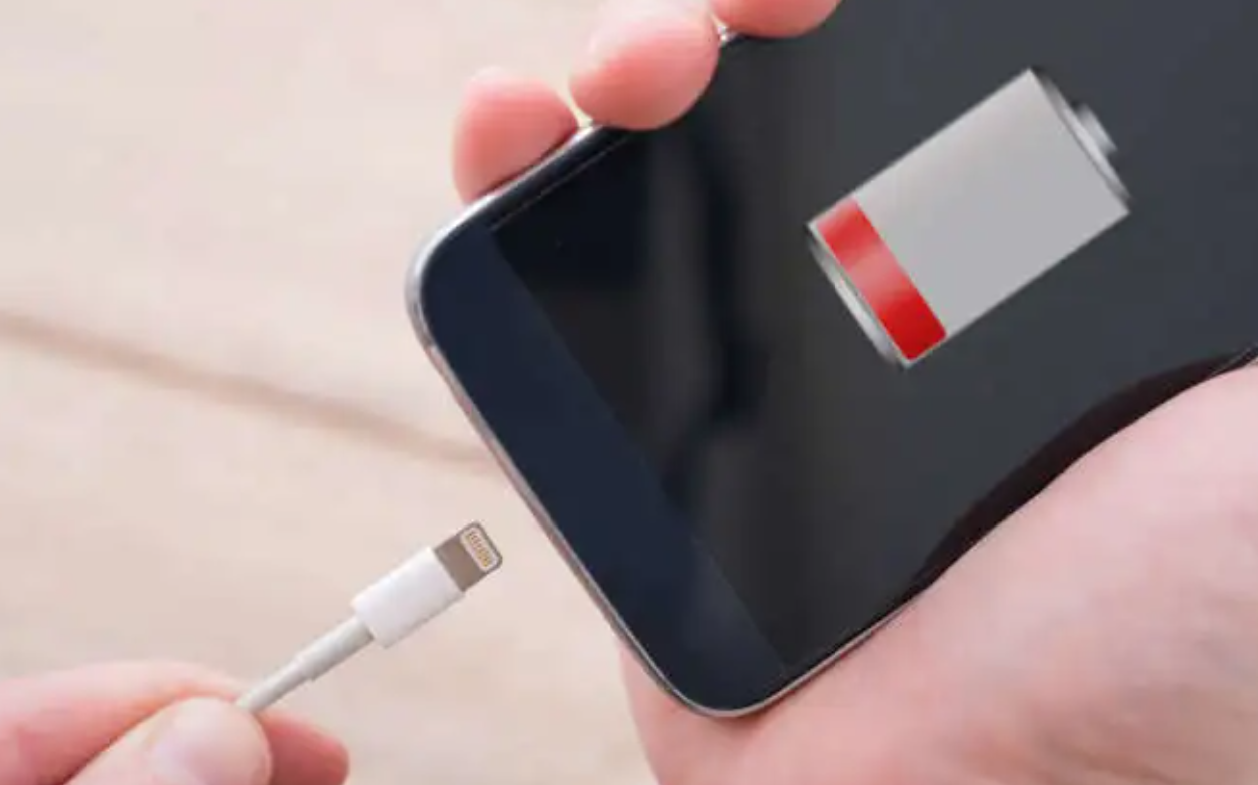
Recently, I encountered a frustrating issue with my smartphone: it would not charge properly. At first, I noticed that sometimes the charging process would stop abruptly, and at other times, the phone charged very slowly despite being plugged in for hours. As someone who relies heavily on my phone for both work and personal matters, this problem immediately became a significant concern. I needed to find a solution quickly because a non-functioning phone affects not only communication but also productivity. Initially, I assumed it might be a temporary glitch, but as the problem persisted, I realized that a deeper investigation was necessary.

To address the issue, I decided to conduct a thorough exploration based on what I could observe and what resources I had available. My first step was to check the most obvious component: the charging cable. I noticed that while the cable appeared physically intact, the problem remained even after swapping it with another one. This made me think about the possibility of internal damage within the cable, as even subtle fraying or internal wire breaks can interfere with proper charging. I also tried using an original cable supplied by the manufacturer and avoided cheap or uncertified alternatives, which some sources recommend, but the charging issue persisted intermittently.

Next, I considered the charging port. Dust or lint accumulation inside the port can prevent a proper connection, so I carefully examined it under good lighting. Using a soft brush and a toothpick, I gently removed any debris, making sure not to use metal objects that could potentially damage the port. While this cleaning slightly improved the situation at first, the problem was not completely resolved, suggesting that the port might not be the only culprit.

I then looked into the power source. Often, charging through a laptop USB port or an older adapter does not supply sufficient power, leading to slow or interrupted charging. I tested a few different wall chargers with higher wattage output and plugged them directly into a reliable wall socket. This adjustment improved the charging speed marginally, but the inconsistency continued, which prompted me to consider other underlying issues beyond the cable and power source.

After these hardware checks, I explored possible software-related causes.

I restarted my phone and updated it to the latest operating system version. I also monitored background apps that could be draining battery excessively while charging. In many cases, software glitches can interfere with normal charging, and these steps are usually recommended to address such issues. Unfortunately, the charging problem still occurred, which suggested that the root cause might be related to the hardware or the battery itself rather than the software.

Concerned about potential overheating issues, I observed the phone while it was charging. I removed its protective case and ensured it was in a cool, ventilated environment, avoiding the use of heavy apps during charging. Overheating can trigger a protective mechanism that stops charging temporarily, so these steps were essential to rule out thermal issues. Nevertheless, although the phone remained cooler, the intermittent charging continued, pointing again to a deeper problem.

Given the continued issues, I turned my attention to battery health. Modern smartphones allow users to check battery condition in the settings menu.

Upon checking, I discovered that the battery had significantly degraded over time, reducing its ability to hold and receive charge efficiently.

Degraded batteries are a common reason for slow or interrupted charging, especially in phones that are several years old.

At this point, I decided to consult multiple professional sources to compare opinions and recommended solutions. I visited two authorized service centers and one independent repair shop. Each place conducted diagnostic tests, but the conclusions varied. One service center recommended replacing the battery entirely, citing its poor health and age. The second center suggested first attempting a full system reset, arguing that software glitches could exacerbate the problem. The independent repair shop emphasized that both the battery and the charging port should be examined in combination, as subtle port damage can mimic battery problems.

The differences in these recommendations initially confused me. Why did each place offer a slightly different approach? Upon reflection and some additional research, I understood that diagnostic methods and professional judgment can vary based on the tools available, the technician’s experience, and the emphasis placed on certain factors such as software versus hardware issues. For example, a center that focuses on hardware may prioritize battery replacement, while another emphasizing software diagnostics may first recommend system resets. Each approach has its merits, but they highlight how complex a seemingly simple issue like charging can be.

To make an informed decision, I spent additional time studying the topic myself. I reviewed technical guides, reputable blogs, and forums where users discussed similar charging issues. I learned about common causes such as faulty cables, debris in the port, weak power sources, software glitches, overheating, and battery degradation. I also studied practical solutions: switching to high-quality cables, cleaning the port carefully, using reliable chargers, checking battery health, and considering professional repair if physical damage existed. The more I learned, the more I realized that while multiple factors could contribute, the most persistent and common culprit for my situation was the aging battery.

After considering all the information, I made my final decision.

I opted to replace the battery at an authorized service center. I chose this route because the battery health check clearly indicated significant wear, and other potential issues like cable, port, and power source had already been tested and partially addressed. While software glitches and overheating could contribute, these factors were secondary in my case. Replacing the battery directly addressed the root cause and provided the most reliable long-term solution. Additionally, doing it through an authorized center ensured quality replacement parts and maintained warranty coverage.

In conclusion, experiencing a phone that would not charge properly was a stressful and inconvenient situation. However, by systematically examining each possible factor—cable, charging port, power source, software, overheating, and battery health—I was able to narrow down the issue. Consulting multiple repair professionals highlighted different diagnostic approaches and reinforced the importance of understanding why recommendations might differ. By studying the problem thoroughly and comparing various sources, I gained a clear understanding of the issue and felt confident in my final choice: replacing the degraded battery. After the replacement, my phone returned to normal charging behavior, providing fast, consistent charging and restoring my peace of mind. This experience also gave me practical knowledge about maintaining my phone’s battery health in the future, including avoiding cheap cables, keeping the port clean, and managing charging habits to extend battery longevity.