
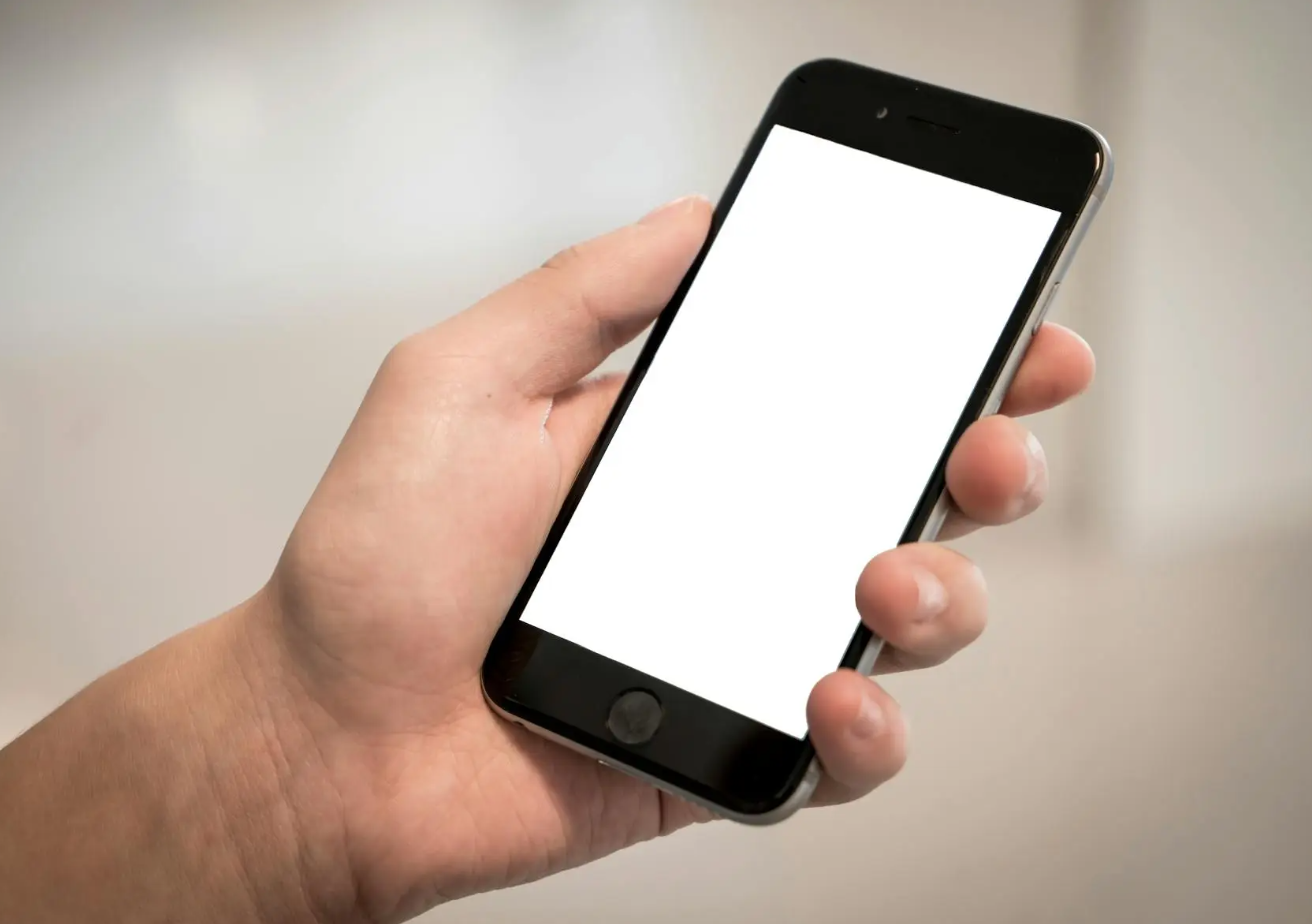
I Thought My Phone Was Broken… But This Is Why the Screen Kept Turning On

Introduction

I experienced a strange and somewhat unsettling issue with my smartphone. Even when I was not touching the device, the screen would randomly turn on by itself. At first, I assumed it was a one-time occurrence, perhaps triggered by a notification or a minor system glitch. However, as the situation continued over several days, it became clear that this was not something I could ignore.

The problem occurred in various situations. Sometimes the screen would light up while the phone was lying on my desk. Other times, it would activate while inside my pocket, which made me concerned about accidental touches or even potential security issues. In addition, I noticed that my battery was draining faster than usual, which made the problem even more frustrating.

What worried me the most was the uncertainty. I did not know whether the issue was caused by a simple setting, a software bug, or even a hardware problem. The idea that something might be wrong with the internal sensors or the power button made me consider the possibility of needing repairs. However, before taking that step,

I decided to thoroughly research the issue and understand what was actually happening.


As I began looking for solutions, I explored a wide range of sources, including online tech articles, user forums, video tutorials, and official support pages. While many of these sources discussed similar symptoms, the explanations and recommended solutions varied significantly.

Some sources emphasized features like “Lift to Wake” or “Raise to Wake,” explaining that even slight movements or vibrations could trigger the screen. Others focused heavily on notifications, suggesting that apps constantly waking the screen were the primary cause. Meanwhile, certain guides pointed toward more technical explanations, such as faulty sensors or software instability.

There were also differences in how serious the issue was considered. Some guides treated it as a minor inconvenience that could be fixed in minutes through settings adjustments. In contrast, other sources warned that it might indicate hardware failure, recommending immediate inspection or repair.

Additionally, opinions varied on troubleshooting methods. Some suggested disabling multiple features at once, while others recommended a step-by-step approach to isolate the exact cause. A few sources even advised booting the phone in safe mode to identify whether third-party apps were responsible.

Because of these differences,

I realized that simply following one guide without understanding the reasoning behind it might not lead to an effective solution.


After reviewing multiple perspectives, I came to understand why the advice differed so much. The primary reason is that the same symptom—screen turning on by itself—can be caused by multiple underlying factors.

For example, modern smartphones include several convenience features designed to improve usability. Functions like “Lift to Wake” and “Double Tap to Wake” rely on motion and touch sensors. While these features are useful, they can sometimes be overly sensitive, especially in environments with frequent vibrations or movement.

Notifications are another major factor. Depending on the user’s settings and the number of installed apps, a phone may receive frequent alerts, each triggering the screen to turn on. For users with many active apps, this can create the impression that the phone is behaving abnormally.

Hardware conditions also play a role. If sensors such as the proximity sensor malfunction or become less accurate, the phone may misinterpret environmental changes and activate the screen unexpectedly. Similarly, issues with charging cables or unstable power connections can cause the device to wake up.

Software differences further complicate the situation. Different smartphone brands and operating system versions implement features in slightly different ways. As a result, the same setting may behave differently depending on the device.

In summary, the variation in advice exists because each user’s situation is unique. Without identifying the specific cause, it is difficult to apply a single universal solution.


Through careful testing and observation, I was able to identify several key insights about this issue.

First, I confirmed that certain built-in features were contributing to the problem. The “Lift to Wake” function was particularly sensitive, and even small movements on my desk were enough to activate the screen. Disabling this feature immediately reduced the frequency of unexpected wake-ups.

Second, I found that notifications played a larger role than I initially expected. Some apps were sending frequent alerts, and each one caused the screen to turn on. By managing notification settings and disabling unnecessary alerts, I was able to significantly reduce the issue.

Third, I tested the “Double Tap to Wake” feature and discovered that it could be triggered accidentally, especially when the phone was in my pocket. Turning this feature off further improved the situation.

I also learned that the “Always-On Display” feature could create confusion. Although it is designed to show limited information, it can give the impression that the phone is constantly turning on. Disabling it provided a clearer distinction between intentional and unintentional screen activity.

In addition, I performed a system restart and checked for software updates. These steps helped eliminate potential temporary glitches and ensured that the device was running the latest optimized version of the operating system.

Finally, I considered the possibility of third-party apps causing interference. By observing the phone’s behavior and being mindful of recently installed applications, I was able to rule out major app-related issues.


After evaluating all the information and testing different solutions, I decided to adopt a systematic and balanced approach rather than assuming a single cause.

My final setup included disabling “Lift to Wake” and “Double Tap to Wake,” managing notifications carefully, and turning off “Always-On Display.” I also ensured that my phone was updated to the latest software version and restarted regularly to maintain stable performance.

I chose this approach because it addressed the most common causes without requiring unnecessary changes or immediate hardware intervention.

Instead of focusing on one potential issue, I eliminated multiple triggers step by step, which allowed me to identify what actually made a difference.

As a result, the problem was almost completely resolved. The screen no longer turned on randomly, and my battery life improved noticeably. Most importantly, I no longer felt concerned about potential security risks or hardware failures.


Through this experience, I learned that issues like a phone screen turning on by itself are often less serious than they initially appear. While the behavior can be frustrating and even alarming, it is usually caused by built-in features or minor settings rather than major defects.

By taking the time to understand the possible causes and applying targeted solutions, it is possible to resolve the issue effectively without professional repair. This process also highlights the importance of understanding how modern smartphone features work, as convenience functions can sometimes lead to unintended behavior.

Ultimately, careful observation, comparison of different sources, and step-by-step testing allowed me to solve the problem confidently and efficiently.
My Phone Was Stuck on the Boot Screen – Here’s How I Fixed It Without Losing Data

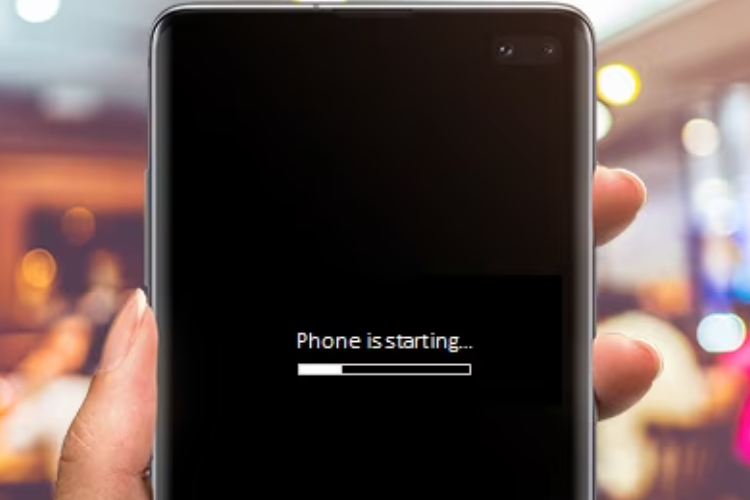
I encountered a situation that every smartphone user dreads: my phone became completely unresponsive and was stuck on the boot screen. When I turned it on, instead of reaching the home screen, the device displayed the logo endlessly, and the loading animation never progressed. At first, I assumed it was just a temporary glitch, so I tried the simplest solution I could think of—a normal restart. Unfortunately, this did not resolve the issue, and I realized that more systematic troubleshooting would be required. Feeling frustrated yet determined, I began to explore various solutions to fix my device.

The first approach I attempted was the force restart. Based on my research, I learned that performing a force restart can resolve temporary software glitches that prevent the phone from booting. By pressing and holding the Power button along with the Volume Down button for approximately 15–20 seconds, the phone finally powered down and attempted to reboot. However, even after multiple attempts, the boot screen remained frozen. Although this step is often effective for minor glitches, it became clear that my situation required further investigation.

Next, I considered the possibility of a low battery causing the boot failure. Sometimes, devices do not have sufficient power to complete the boot sequence, especially if the battery level is critically low or if there are underlying battery issues. I plugged my phone into a high-quality, original charger and waited for nearly 30 minutes before attempting to power it on again. Unfortunately, this method also failed to resolve the issue. While charging is a simple and safe step, it did not address the root cause in my case.

Recognizing that a faulty application could also be responsible for boot problems, I decided to attempt booting the device into Safe Mode. This mode allows the phone to start with only essential system applications, temporarily disabling all third-party apps. I pressed and held the Power button, then long-pressed the “Power Off” option until the Safe Mode prompt appeared. After selecting “OK,” the phone attempted to boot into Safe Mode, but again, the device remained stuck on the boot screen. This indicated that the problem was unlikely to be caused by a third-party application and pointed toward either system-level corruption or hardware-related issues.

At this stage, I sought professional advice and compared recommendations from multiple sources. I contacted the official service center for my phone’s brand, a local independent repair shop, and an online technical support forum. The official service center suggested that the issue could stem from corrupted system files and recommended either clearing the cache partition or performing a factory reset. The independent repair shop proposed a similar approach but emphasized checking for potential hardware failures, such as a malfunctioning motherboard or battery. On the technical forum, several users suggested more advanced software repair techniques, such as flashing the firmware using specialized tools, but warned that these methods could risk further damage if done incorrectly.

By comparing these consultations, I noticed that while all sources agreed on the possibility of corrupted system files, the perceived urgency, risk level, and recommended steps varied depending on the expertise and perspective of each advisor.

The differences in recommendations made me curious about why each source suggested different approaches. After studying the underlying principles, I realized that variations in advice often stemmed from how each expert evaluates risk, convenience, and the likelihood of success. The official service center prioritized safe and guaranteed outcomes, thus recommending options that could be performed with minimal risk to data, such as clearing the cache or performing a controlled factory reset. The independent repair shop, dealing with physical components, considered hardware failures as a serious possibility and factored in repair costs. Meanwhile, online forums included suggestions based on advanced technical knowledge and hands-on experience with uncommon scenarios, where users often take higher risks to attempt a solution themselves. Understanding these distinctions helped me appreciate the reasoning behind each recommendation and prepared me to make an informed choice.

In parallel, I also dedicated time to studying the technical background behind the boot screen issue. I learned that software update failures, corrupted system files, low memory or storage issues, and battery or hardware glitches are common reasons why phones get stuck during booting. Each potential cause requires a different troubleshooting approach: temporary glitches can often be resolved with a force restart, app-related conflicts are addressed via Safe Mode, cache corruption is fixed by wiping the cache partition, and severe system corruption may require a factory reset. I also explored the process of entering Recovery Mode on Android devices, which allows users to wipe the cache partition or perform a full factory reset without needing the device to boot normally. Additionally, I read about precautions, such as removing SIM cards, SD cards, or other external accessories that might interfere with the boot process, and the importance of using original chargers to ensure stable power delivery.

After carefully considering all the advice, potential risks, and my own understanding of the technical background, I ultimately decided on a stepwise approach.

First, I attempted all safe, non-destructive methods, such as force restart and charging the phone fully. Then, because Safe Mode did not work and the cache partition appeared to be corrupted, I proceeded to wipe the cache partition through Recovery Mode. This step allowed me to address potential system corruption without deleting personal data.

Once the cache was cleared, the phone finally booted successfully, confirming that the problem was primarily caused by corrupted cache files rather than hardware failure or app conflicts.

I did not have to perform a factory reset, which would have erased all my data—a solution I had considered only as a last resort.

In conclusion, my experience with a phone stuck on the boot screen was both frustrating and educational. By systematically exploring solutions, comparing advice from multiple professional and informal sources, analyzing the reasons behind differing recommendations, and studying the technical principles involved, I was able to make a confident and informed decision. The final success of clearing the cache partition reinforced the importance of approaching troubleshooting in a structured, informed, and cautious manner. This experience not only restored my phone to working condition but also expanded my understanding of how smartphones operate and how to address complex technical problems safely. It reminded me that even in situations that appear dire, careful study and methodical action can often resolve the issue without unnecessary risk.

My Touchscreen Stopped Working—8 Things I Tried That Made a Difference

When my phone screen suddenly stopped responding, it felt like everything came to a halt. I rely heavily on my phone for work, communication, and even small daily tasks, so the moment I realized that touch inputs were not registering, I immediately felt both frustrated and anxious. At first, I thought it was just a temporary glitch, but when repeated taps and swipes didn’t work, I knew I had to take the situation seriously. I tried to unlock the phone several times, but nothing changed. That moment of helplessness pushed me to start researching possible causes and solutions right away.

As I began looking into the issue, I explored multiple sources—tech blogs, forums, YouTube videos, and even customer service centers. Interestingly, the advice I found varied quite a bit depending on where I looked. Some sources emphasized simple fixes like restarting the device or cleaning the screen, while others suggested more advanced troubleshooting such as booting into safe mode or performing a factory reset. I also checked official support pages for both Android and iPhone users, and they tended to recommend structured step-by-step diagnostics. Meanwhile, user communities often shared personal experiences, which sometimes contradicted official guidance but provided practical insights.

I even considered visiting a repair center, but before doing so, I compared different consultation opinions online. Some technicians claimed that unresponsive screens are usually caused by hardware damage, especially if the phone had been dropped. Others insisted that software bugs are the more common culprit, particularly after system updates. A few discussions highlighted how screen protectors or moisture could interfere with touch sensitivity—something I hadn’t initially considered. This wide range of opinions made it clear that there is no single universal cause, which explained why the recommended solutions differed so much.

The reason behind these differing conclusions became clearer as I continued researching.

Touchscreen issues can originate from multiple layers: hardware (like the digitizer), software (operating system bugs), or external factors (such as dirt, water, or accessories).

Each expert or source tends to focus on the area they are most familiar with. For example, repair technicians often see physically damaged devices, so they may lean toward hardware explanations. On the other hand, software-focused guides prioritize system glitches and bugs. Additionally, user experiences vary widely depending on how the issue started—whether from a drop, water exposure, or simply random malfunction—leading to different interpretations and advice.

Through this process, I also took time to study how smartphone touchscreens actually work. I learned that most modern devices use capacitive touchscreens, which detect electrical changes when your finger touches the screen. This means that anything interfering with conductivity—like water, oil, or even certain screen protectors—can disrupt performance. I also discovered that software plays a crucial role in interpreting touch signals, so bugs or outdated systems can cause delays or complete unresponsiveness.

Another important takeaway was that force restarting the device can often resolve temporary system freezes without affecting data, making it one of the safest first steps.

After gathering all this information, I decided to follow a structured approach rather than jumping straight to drastic measures. I started with the simplest fixes: cleaning the screen thoroughly and removing the screen protector. Surprisingly, this alone improved responsiveness slightly, which confirmed that external factors were contributing to the problem. Next, I performed a force restart, and this made a noticeable difference—the screen began responding normally again. To prevent future issues, I also updated the software to the latest version.

In the end, I chose not to proceed with a factory reset or visit a repair center because the issue was resolved through basic troubleshooting. My final decision was based on minimizing risk and effort while addressing the most likely causes first. This experience taught me the importance of understanding both hardware and software aspects before taking action. It also showed me that while professional help is valuable, many common smartphone issues can be resolved independently with the right knowledge and a calm, methodical approach.

Overall, what initially felt like a major problem turned into a valuable learning experience.

By comparing different perspectives, understanding the underlying causes, and carefully applying solutions, I was able to fix the issue efficiently.

If I encounter a similar problem in the future, I will feel much more confident handling it on my own.