
My Wi-Fi Was Terrible Until I Fixed These 5 Simple Mistakes

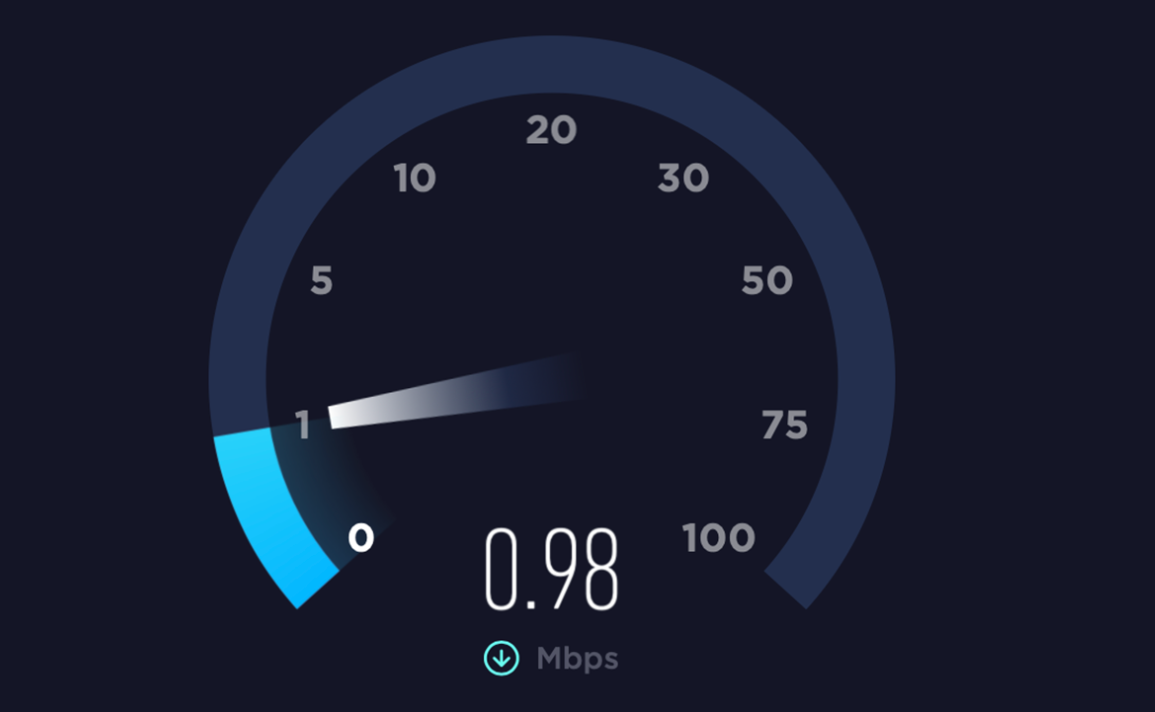
A few weeks ago, I started experiencing an extremely frustrating issue with my home Wi-Fi. Despite paying for a high-speed internet plan, my smartphone was noticeably slower than usual. Videos kept buffering, web pages loaded slowly, and even simple apps felt unresponsive. Interestingly, other devices like my laptop and tablet seemed to work just fine, which made the situation even more confusing.

At first, I assumed the problem was with my internet service provider. However, after resetting my connection multiple times with no improvement, I realized that the issue might be coming from something inside my home setup. That realization led me to start researching and comparing different possible causes and solutions.

As I began looking into this problem, I checked multiple sources including tech blogs, forums, and even contacted customer support for advice. What surprised me the most was that each source gave slightly different explanations. Some emphasized router placement as the most important factor, while others pointed to device overload or outdated equipment. A few even suggested that interference from household electronics could be the main issue.

Because the answers varied so much, I became curious about why there wasn’t a single clear cause. After comparing all the information,

I realized that Wi-Fi performance is not controlled by just one factor.

Instead, it is the result of several small issues combined together.

Depending on each person’s environment, the main cause can be completely different. For example, someone living in a small apartment may struggle more with interference from nearby networks, while someone in a larger home may face coverage issues due to poor router placement.

This led me to study the topic more deeply on my own. I started learning about how Wi-Fi signals actually work, including how physical obstacles like walls and furniture can weaken the signal. I also learned the difference between 2.4 GHz and 5 GHz frequency bands, and how each one performs under different conditions. Additionally, I found out that older routers may not support modern internet speeds efficiently, which can create a bottleneck even if the internet plan itself is fast.

One of the most important things I discovered was that many people, including myself, tend to ignore router maintenance. I had never updated my router firmware before, and I didn’t even realize that routers require updates just like smartphones or computers. This alone can affect both speed and stability.

After understanding all these factors, I decided to take a systematic approach to fixing my Wi-Fi. First, I moved my router from a corner of the room to a more central and elevated location. Previously, it had been placed behind furniture, which was clearly blocking the signal. Next, I disconnected several unused devices that were still connected to the network. I also switched my main devices to the 5 GHz band for better speed.

In addition, I checked my router settings and updated the firmware to the latest version. Finally, I made sure that the router was placed away from electronic devices like the microwave and TV, which could cause signal interference.

The results were immediately noticeable. My internet speed improved significantly, and the connection became much more stable. Streaming videos no longer buffered, and apps loaded quickly without delay. What initially felt like a complicated technical issue turned out to be a combination of simple mistakes that I had overlooked.

The reason I ultimately chose this approach was because it addressed multiple possible causes at once rather than focusing on just one solution. Instead of assuming a single problem, I applied everything I had learned step by step. This made the biggest difference.

Through this experience, I realized that slow Wi-Fi is often not caused by your internet provider, but by how your home network is set up.

Small changes can lead to big improvements if you understand the underlying reasons.

If you are facing a similar issue, I highly recommend taking the time to review your Wi-Fi setup carefully. Even simple adjustments can dramatically improve your internet experience, just as they did for me.
My Wi-Fi Said Connected… But Nothing Worked — Here’s Why

Recently, I encountered a very frustrating issue while using my smartphone and laptop at home.

Although my devices showed that they were connected to Wi-Fi, I was unable to access the internet.

The message “Connected, but no internet” appeared, and no matter what I tried, web pages would not load.

At first, I thought the issue would resolve itself after a short time. However, the problem continued to occur repeatedly. Even though the Wi-Fi signal appeared strong, I could not use any online services. This made it difficult to complete even simple tasks such as browsing the internet or checking messages.

Since I rely heavily on a stable internet connection for daily activities, this issue quickly became a major inconvenience. As a result, I decided to investigate the cause and find a reliable solution.


To resolve this issue, I explored various sources including technology blogs, online forums, and troubleshooting guides. I found that many users experienced the same problem, but the recommended solutions varied.

Some sources emphasized restarting the router and modem as the most effective solution. Others suggested focusing on the device itself, recommending actions such as restarting the device or reconnecting to the Wi-Fi network.

There were also recommendations about checking IP address conflicts and adjusting DNS settings. Some guides highlighted resetting network settings as a deeper solution for persistent issues.

Additionally, a few sources pointed out that the problem might not be on the user’s side at all, but rather due to an outage from the internet service provider.

Because each source focused on different causes, it was initially difficult to determine which solution would work best.


After comparing multiple sources, I realized that the differences in advice were due to the various possible causes of the “Connected, but no internet” error.

First, the issue can originate from different points in the network. While the device may be connected to the router, the router itself may not have access to the internet.

Second, the problem could be device-specific. Incorrect network settings, outdated software, or corrupted configurations can cause connection issues on a single device.

Third, network-related factors such as IP conflicts or DNS errors can prevent proper communication with websites.

Finally, external factors such as internet service provider outages can also cause the issue, even if everything appears normal on the user’s end.

Understanding these possibilities helped me realize that there is no single universal solution.


Through my research and testing,

I learned that solving this issue requires a step-by-step approach.

First, restarting the router and modem proved to be one of the most effective solutions.

This simple action can resolve many temporary network glitches.

Second, restarting my devices helped refresh the network connection and sometimes resolved the issue immediately.

Third, forgetting and reconnecting to the Wi-Fi network helped fix problems caused by outdated or corrupted settings.

I also learned that checking whether other devices have internet access is very useful. This helps identify whether the problem is with the network or a specific device.

Additionally, resetting network settings provided a deeper solution for persistent issues, although it requires reconnecting to all networks again.

Finally, changing DNS settings to a public DNS server improved connectivity in some cases.


After trying different solutions, I decided to adopt a structured approach to troubleshooting this issue.

Whenever the problem occurs, I first restart the router and modem, as this is the simplest and most effective step. If the issue persists, I restart my device and reconnect to the Wi-Fi network.

If the problem continues, I check whether other devices are affected to identify the root cause. I also use network reset and DNS changes when necessary.

I chose this approach because it allows me to quickly identify and resolve the issue without unnecessary steps. Instead of guessing, I follow a logical process that covers all possible causes.

As a result, I am now able to resolve this issue much more efficiently, and the frustration of being connected without internet has been greatly reduced.


The “Connected, but no internet” error can be confusing, but it is usually caused by identifiable issues such as router problems, network settings, or service outages.

By understanding how the connection works and applying simple troubleshooting steps, it is possible to resolve the issue quickly.

Taking a systematic approach to diagnosing the problem can save time and help restore a stable internet connection without unnecessary stress.