From Muffled Music to Clear Sound: My Bluetooth Journey

When I first started looking into the issue of poor Bluetooth audio quality, it was not out of simple curiosity but rather from a frustrating personal experience. I rely heavily on wireless earbuds and speakers in my daily life—whether I am listening to music while working, watching videos, or taking calls. At one point, I began noticing that the sound quality was not as good as I expected. Music sounded slightly muffled, certain details were missing, and sometimes the audio would feel compressed or even slightly distorted. At first, I assumed it might be a problem with my headphones, but even after switching devices, the issue persisted. That was the moment I realized I needed to understand what was actually happening.

As I tried to solve this problem, I explored various sources and compared advice from different places, including tech forums, blogs, and video explanations. Interestingly, the explanations were not always consistent. Some sources strongly emphasized Bluetooth codecs as the main cause, suggesting that upgrading to higher-quality codecs would solve most problems. Others focused more on environmental factors such as signal interference or distance between devices. There were also opinions highlighting hardware limitations, claiming that even with the best settings, Bluetooth would never match wired audio quality. This variety of explanations made the situation more confusing rather than clearer, because each source seemed confident in a different primary cause.

I then began to question why the answers differed so much. After spending more time analyzing the information,

I realized that Bluetooth audio quality is not determined by a single factor.

Instead, it is the result of multiple interacting variables. For example, one user might experience poor audio due to using the default SBC codec, while another might suffer from interference caused by crowded wireless environments. In some cases, the issue might even come from the audio source itself, such as low-bitrate streaming. Because each person’s setup is different—device model, software version, environment, and usage habits—the “main cause” can vary significantly. This explains why different experts prioritize different solutions based on what they encounter most frequently.

At that point, I decided to study the topic more systematically rather than relying on fragmented advice. I learned that Bluetooth audio relies on compression through codecs, which directly affects sound quality. Lower-quality codecs like SBC compress audio more aggressively, resulting in noticeable loss of detail. Higher-quality codecs such as aptX HD or LDAC preserve more information, but they require both the transmitting device and the receiving device to support them. I also learned that signal strength plays a critical role. Even with a high-quality codec, a weak or unstable connection can cause audio degradation. Interference from other devices operating in the same frequency band, especially in busy environments, can further reduce performance.

Additionally, I discovered that battery levels and software also influence audio quality. Low battery can cause devices to reduce performance, and outdated firmware can introduce inefficiencies or bugs. Perhaps most importantly, I realized that the quality of the audio source itself cannot be ignored. Even with perfect Bluetooth conditions, low-quality audio files or low streaming settings will still produce poor sound.

This helped me understand that improving Bluetooth audio is not about fixing a single issue but optimizing an entire chain of factors.

Based on everything I learned, I made a final decision on how to improve my own experience. Instead of focusing on just one solution, I took a comprehensive approach. I ensured that my devices supported better codecs and checked the settings to use the highest available option. I also made small but important changes to my environment, such as keeping my phone closer to my headphones and reducing interference from other wireless devices. I switched my Wi-Fi to a less congested band and made sure my devices were always sufficiently charged. On top of that, I upgraded my music streaming settings to higher quality.

The reason I chose this approach is because it addresses the root problem: Bluetooth audio quality is not limited by a single bottleneck.

By improving multiple aspects simultaneously—codec, signal stability, device compatibility, and audio source—I was able to achieve a noticeable improvement in sound quality.

While Bluetooth may still have inherent limitations compared to wired connections, I found that with the right adjustments, the difference becomes much less significant in everyday use.

Through this process, I not only solved my initial problem but also gained a deeper understanding of how wireless audio works. What started as a simple frustration turned into a valuable learning experience, and it changed the way I evaluate and use my devices moving forward.

My Struggle With a Bluetooth Device That Refused to Connect

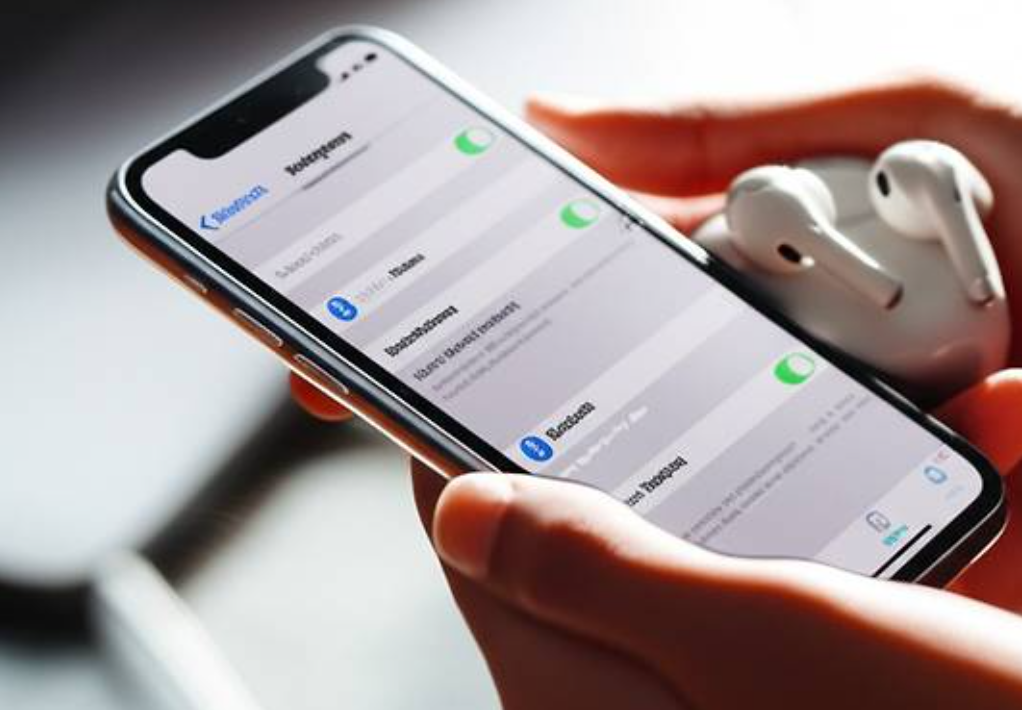
When I first encountered the issue of my Bluetooth device not showing up during scanning, I did not immediately understand what was going wrong. Like many people, I rely heavily on wireless devices such as earbuds, speakers, and even a wireless keyboard in my daily routine. One day, I tried to connect my earbuds to my smartphone, but no matter how many times I refreshed the Bluetooth scan list, the device simply did not appear. At first, I assumed it was a temporary glitch. However, even after waiting and trying again multiple times, the problem persisted. This situation became increasingly frustrating, especially because I had successfully connected the same device before without any issues. I began to wonder whether the problem was with my phone, the Bluetooth device itself, or something more technical that I did not yet understand.

As I tried to solve the issue, I looked into various sources for guidance. I searched online blogs, watched troubleshooting videos, and even checked official support pages from device manufacturers. Interestingly, the advice I found was not always consistent. Some sources emphasized that the most important step was ensuring that Bluetooth was turned on, which seemed obvious but still worth checking. Others insisted that the key issue was pairing mode, explaining that many devices will not appear unless they are explicitly set to be discoverable. There were also recommendations suggesting that I should restart both devices, reset network settings, or even update my device’s software. In addition, some forums mentioned more specific solutions, such as clearing previously connected devices or avoiding wireless interference. Because the suggested solutions varied so much, I felt uncertain about which approach would actually solve my problem.

The reason these solutions differed became clearer as I continued researching.

I realized that Bluetooth connectivity issues can arise from multiple causes, and each user’s situation may be slightly different. For example, in some cases, the issue is simply that Bluetooth is turned off or temporarily malfunctioning. In other cases, the device may not be in pairing mode, which prevents it from appearing during scanning. Additionally, some devices can only connect to one device at a time, meaning they will not show up if they are already connected elsewhere. Interference from Wi-Fi signals or other Bluetooth devices can also affect visibility. Furthermore, software-related problems, such as outdated operating systems or minor system glitches, can interfere with the scanning process. Because there are so many possible causes, it makes sense that different sources provide different solutions based on their own experiences or assumptions.

To better understand the problem, I decided to study how Bluetooth actually works.

I learned that Bluetooth devices use radio waves in the 2.4 GHz frequency band to communicate, which is the same band used by many other wireless technologies. This means that signal interference is a real possibility, especially in environments with many connected devices. I also learned that Bluetooth devices must enter a specific state called “pairing mode” to become discoverable. Without this step, the device will remain invisible during scanning, no matter how many times the user searches for it. Additionally, I discovered that Bluetooth connections are often stored in a device’s memory, and having too many saved connections can sometimes cause conflicts. Another important insight was that restarting devices can clear temporary errors in the system, effectively resetting the Bluetooth functionality. This deeper understanding helped me move beyond simply following instructions and allowed me to identify the root cause more logically.

After carefully trying several methods, I eventually found the solution that worked best in my situation. First, I made sure that Bluetooth was turned on and functioning properly on my smartphone. Then, I placed my Bluetooth device into pairing mode by holding the designated button until the indicator light started blinking. I also moved the devices closer together to ensure a strong signal. When the device still did not appear, I restarted both my smartphone and the Bluetooth device. Additionally, I turned off Bluetooth on other nearby devices to prevent interference or connection conflicts. Finally, I removed old, unused Bluetooth connections from my phone’s settings. After following these steps, the device successfully appeared in the scan list and connected without any issues.

The reason I chose this combination of solutions is that it addressed multiple potential causes at once rather than focusing on just one possibility.

Instead of assuming a single issue, I approached the problem from a broader perspective, considering factors such as pairing mode, signal strength, software stability, and connection conflicts. This comprehensive approach proved to be effective because Bluetooth issues are often caused by a combination of small factors rather than a single obvious problem.

In conclusion, my experience taught me that Bluetooth devices not appearing during scanning is a common issue with multiple possible causes. While it may seem frustrating at first, the problem can usually be resolved through a systematic approach that includes checking basic settings, ensuring proper pairing mode, minimizing interference, and restarting devices. By understanding how Bluetooth technology works and carefully applying the appropriate solutions, I was able to resolve the issue successfully. This experience also helped me become more confident in troubleshooting similar technical problems in the future.

My Journey to Fix Bluetooth Lag on Earbuds During Videos and Games

When I first started experiencing Bluetooth audio lag while watching videos and playing games, I did not immediately understand what was causing the issue. Like many people who rely on wireless earbuds and speakers daily, I assumed that Bluetooth technology would work seamlessly in all situations. However, one day I noticed something very frustrating: when I watched videos, the dialogue did not match the actors’ lip movements, and when I played games, the sound effects were noticeably delayed compared to the on-screen actions. At first, I thought it was just a temporary glitch, but even after reconnecting my devices multiple times, the problem continued. This experience led me to seriously investigate the root cause of Bluetooth lag.

As I tried to solve this issue, I looked into various sources for advice and compared different solutions. Some online forums suggested that the problem was mainly due to the distance between devices, recommending that I stay closer to my phone or computer. Other sources emphasized the importance of updating software, claiming that outdated firmware could create synchronization problems. Meanwhile, several tech blogs and video guides highlighted Bluetooth codecs as the most critical factor, especially mentioning low-latency codecs like aptX Low Latency or aptX Adaptive. I also came across advice suggesting that background apps could slow down device performance, indirectly causing audio lag. Because these recommendations varied significantly, it became clear that there was no single universal answer.

This difference in advice made me wonder why the explanations were not consistent across sources. After comparing them carefully, I realized that Bluetooth lag is not caused by just one factor but by a combination of multiple variables. For example, some users may experience lag primarily due to weak signals or physical interference, especially in environments with many obstacles or wireless devices. Others may face issues because their devices only support basic codecs like SBC, which inherently have higher latency. In some cases, the performance of the device itself—such as CPU load or background processes—can delay audio processing.

Because each user’s environment, device specifications, and usage patterns are different, it makes sense that the suggested solutions would vary as well.

This helped me understand why different sources seemed to “disagree” while actually addressing different root causes.

To better understand the issue, I decided to study how Bluetooth audio transmission works.

I learned that Bluetooth audio is not sent instantly; instead, it goes through several steps: encoding the audio on the source device, transmitting it wirelessly, and then decoding it on the receiving device.

Each of these steps introduces a small delay, and when combined, they can result in noticeable latency—often between 100 ms and 300 ms. I also learned that the codec plays a major role in this process. Standard codecs like SBC prioritize compatibility over speed, which increases delay, while advanced codecs like aptX Low Latency are specifically designed to reduce this delay. Additionally, I discovered that Bluetooth versions matter, as newer versions tend to handle data more efficiently. Beyond that, environmental factors such as interference from Wi-Fi routers or other wireless devices can disrupt the signal, causing further delay. Understanding these technical aspects gave me a clearer picture of why the issue was happening.

After going through all this research and testing different methods myself, I made a final decision on how to address the problem. Instead of relying on just one solution, I combined several approaches for the best results. First, I made sure my devices supported better audio codecs and checked whether I could enable a low-latency option. Then, I updated all relevant software, including my smartphone and Bluetooth earbuds, to ensure optimal performance. I also started closing unnecessary background apps before watching videos or playing games, which improved overall responsiveness. Additionally, I paid attention to my environment by staying closer to my device and minimizing interference. However, for situations where perfect synchronization was essential—such as competitive gaming—I chose to use wired headphones instead, as they completely eliminate audio delay.

In conclusion, my experience taught me that Bluetooth audio lag is a complex issue with multiple causes, rather than a simple technical fault.

By understanding the underlying factors and testing different solutions, I was able to significantly reduce the delay and improve my overall experience.

While Bluetooth technology is incredibly convenient, it still has limitations, and choosing the right setup based on your needs is important. Through this process, I not only solved my problem but also gained a deeper understanding of how wireless audio technology works.

Why My Bluetooth Suddenly Refused to Pair – And How I Fixed It

When I first encountered issues with my Bluetooth device not pairing, I did not immediately understand what was going wrong.

At the time, I was relying heavily on wireless devices such as earbuds and a Bluetooth speaker for daily use, including listening to music, watching videos, and even taking calls. One day, I tried to connect my earbuds to my smartphone as usual, but the pairing simply would not work. The device appeared briefly in the Bluetooth list and then disappeared, or sometimes it would not show up at all. In other cases, it seemed to connect but produced no sound. This inconsistency made the situation even more confusing and frustrating.

At first, I assumed it was a temporary glitch. I turned Bluetooth off and back on multiple times, restarted my phone, and even tried charging the earbuds fully. However, none of these initial attempts resolved the issue. What made it more frustrating was that the devices had worked perfectly before, which made me question whether the problem was with the device itself, the phone, or something else entirely. This experience pushed me to investigate further rather than simply giving up or replacing the device.

As I started looking for solutions, I explored multiple sources of information. I searched through online forums, watched troubleshooting videos, and read various tech blogs. Each source seemed to suggest slightly different causes and solutions. Some emphasized simple issues such as Bluetooth being turned off or devices not being in pairing mode. Others pointed to more complex causes like software bugs, compatibility issues, or interference from other wireless signals. I also compared advice from official manufacturer guides and general user communities. Interestingly, manufacturer guides tended to focus on standard steps like resetting the device and ensuring proper pairing mode, while user forums often highlighted real-world issues such as connection conflicts with previously paired devices or problems after software updates.

The differences between these sources initially made things more confusing.

However, I eventually realized that Bluetooth pairing issues do not have a single universal cause.

Instead, they can result from a variety of factors depending on the specific situation. For example, one source might emphasize distance because the user experienced pairing failure due to being too far from the device, while another might focus on cache issues because their problem was related to software glitches. In my case, the issue turned out to be a combination of factors rather than a single cause. This explained why the solutions I found did not always work immediately.

To better understand the problem, I decided to study the underlying concepts behind Bluetooth connectivity. I learned that Bluetooth devices require both hardware readiness and proper software communication. For instance, both devices must have Bluetooth enabled, and one must be in pairing mode to be discoverable. I also discovered that many Bluetooth devices automatically connect to the last paired device, which can block new connections. This was something I had overlooked initially. Additionally, I learned about limitations such as the maximum number of stored paired devices and how clearing old connections can free up space for new ones.

Another important concept I explored was interference. Bluetooth operates on the 2.4 GHz frequency band, which is shared by many other devices such as Wi-Fi routers and wireless peripherals. This means that in environments with many active wireless signals, pairing can become unstable or fail altogether. This insight helped me understand why my connection issues were more frequent in certain areas of my home.

Software-related issues were also a key part of what I learned. Temporary glitches, outdated operating systems, or corrupted Bluetooth cache can all interfere with proper pairing. I found that simply restarting devices or updating software can often resolve these hidden issues. In particular, clearing the Bluetooth cache on my smartphone turned out to be more effective than I initially expected.

After gathering and comparing all this information, I carefully applied the solutions step by step rather than trying everything randomly. First, I ensured that Bluetooth was properly enabled and that my earbuds were in pairing mode. Then, I checked whether the device was connected to another phone and disconnected it. I also deleted old Bluetooth connections from my phone to free up memory. Finally, I restarted both devices and updated my phone’s operating system.

The turning point came when I reset my earbuds and removed all previously paired devices. After doing this, the pairing process worked smoothly again. This confirmed that the issue had been caused mainly by connection conflicts and stored pairing data rather than a hardware failure.

In the end, I chose to rely on a combination of practical troubleshooting steps and a deeper understanding of how Bluetooth works.

Rather than depending on a single source, I compared multiple perspectives and identified the most relevant solutions for my situation. This approach not only solved my immediate problem but also gave me confidence in handling similar issues in the future.

Through this experience, I realized that Bluetooth pairing problems are often simple on the surface but can involve multiple underlying factors.

By approaching the issue systematically—understanding the problem, comparing different explanations, and applying targeted solutions—I was able to resolve the issue effectively without unnecessary frustration or expense.

No Sound Even Though Bluetooth Was Connected — The Simple Fix I Missed

When I first encountered the issue of my Bluetooth device being connected but producing no sound, I did not immediately understand what was going wrong. Like many people, I rely heavily on wireless devices such as earbuds and speakers for daily activities, including listening to music, watching videos, and taking calls. One day, everything appeared normal—the Bluetooth icon showed that my earbuds were connected—but there was absolutely no audio. At first, I thought it was a temporary glitch, but the problem persisted even after reconnecting multiple times. This situation became increasingly frustrating because there was no clear indication of what the actual cause was.

As I tried to solve the issue, I started looking up different solutions online and even compared advice from multiple sources such as tech blogs, forums, and customer support pages. Interestingly, the solutions were quite varied. Some sources emphasized simple fixes like turning Bluetooth off and on again, while others suggested more technical steps such as resetting network settings or updating firmware. A few forums even mentioned that the issue could be hardware-related, which made me concerned that my device might be faulty. I also noticed that different platforms—such as Android-focused guides versus Windows or iOS guides—often prioritized different troubleshooting methods.

The reason these solutions varied so much became clearer as I continued researching.

I realized that the “connected but no sound” issue does not have a single universal cause.

Instead, it can result from several different factors depending on the device, operating system, and usage environment. For example, in some cases, the problem is simply due to the audio output being set to the wrong device. In other situations, it can be caused by temporary software glitches, conflicts with other connected Bluetooth devices, or even outdated system software. Because each user’s setup is slightly different, the recommended solutions can also differ, which explains why the advice I found was not always consistent.

At this point, I decided to take a more structured approach and study the problem in detail rather than trying random fixes. I learned that Bluetooth audio issues are often related to how devices manage connections and audio routing. For instance, even if a Bluetooth device is successfully paired, the system might still send audio to the phone’s internal speaker unless the output is manually changed. I also discovered that Bluetooth connections can sometimes become unstable or “stuck,” which is why simple actions like turning Bluetooth off and on or restarting devices can be surprisingly effective. Additionally, I found out that many Bluetooth devices have independent volume controls, meaning that even if the phone volume is high, the earbuds themselves could still be muted.

Through this process, I tested each solution step by step. First, I checked the audio output settings and confirmed whether my Bluetooth device was selected. Then, I restarted both my phone and the earbuds, which helped clear any temporary system errors. I also made sure to disconnect other nearby Bluetooth devices to avoid connection conflicts. One of the most effective steps was forgetting the device entirely and pairing it again, as this reset the connection data and eliminated any hidden issues. Finally, I checked for software updates to ensure that both my phone and the Bluetooth device were running the latest versions.

In the end, I was able to resolve the issue without needing to replace my device or seek professional repair. The problem turned out to be a combination of incorrect audio output settings and a minor connection glitch.

My final decision to follow a step-by-step troubleshooting process, rather than relying on a single solution, was crucial.

It allowed me to systematically eliminate possible causes and identify the exact reason behind the issue.

This experience taught me that even simple tech problems can have multiple underlying causes, and understanding the basics can make a big difference. Instead of feeling frustrated, I now see these situations as opportunities to learn more about how my devices work.

More importantly, I realized that most Bluetooth issues can be resolved quickly with the right approach, without needing advanced technical knowledge or expensive repairs.