
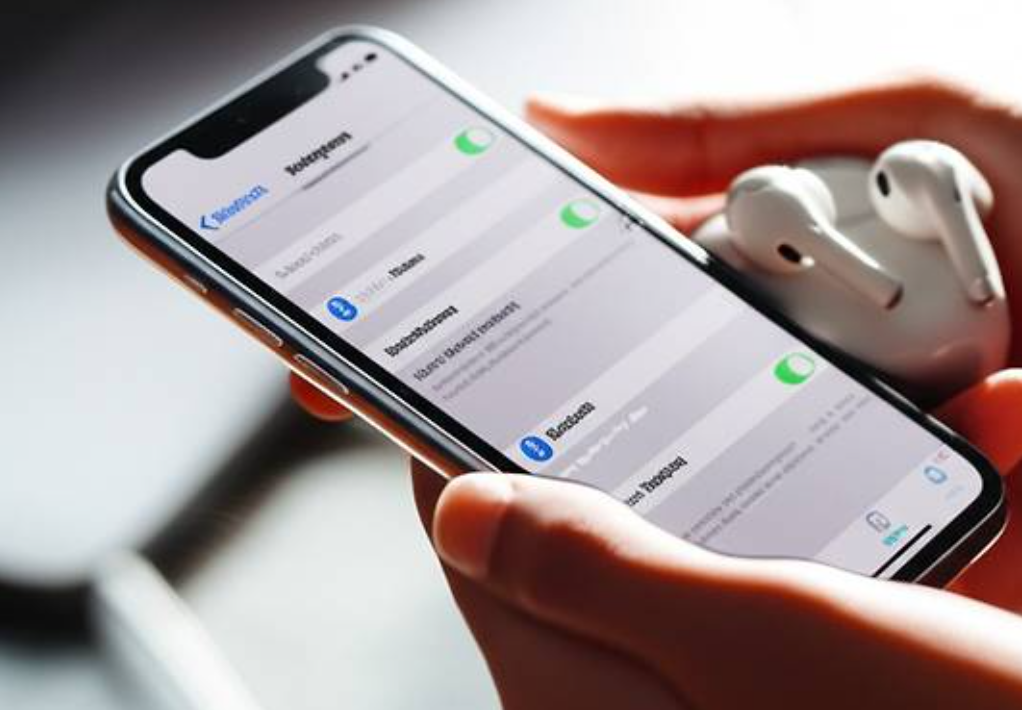
When I first encountered the issue of my Bluetooth device not showing up during scanning, I did not immediately understand what was going wrong. Like many people, I rely heavily on wireless devices such as earbuds, speakers, and even a wireless keyboard in my daily routine. One day, I tried to connect my earbuds to my smartphone, but no matter how many times I refreshed the Bluetooth scan list, the device simply did not appear. At first, I assumed it was a temporary glitch. However, even after waiting and trying again multiple times, the problem persisted. This situation became increasingly frustrating, especially because I had successfully connected the same device before without any issues. I began to wonder whether the problem was with my phone, the Bluetooth device itself, or something more technical that I did not yet understand.
As I tried to solve the issue, I looked into various sources for guidance. I searched online blogs, watched troubleshooting videos, and even checked official support pages from device manufacturers. Interestingly, the advice I found was not always consistent. Some sources emphasized that the most important step was ensuring that Bluetooth was turned on, which seemed obvious but still worth checking. Others insisted that the key issue was pairing mode, explaining that many devices will not appear unless they are explicitly set to be discoverable. There were also recommendations suggesting that I should restart both devices, reset network settings, or even update my device’s software. In addition, some forums mentioned more specific solutions, such as clearing previously connected devices or avoiding wireless interference. Because the suggested solutions varied so much, I felt uncertain about which approach would actually solve my problem.
The reason these solutions differed became clearer as I continued researching.
I realized that Bluetooth connectivity issues can arise from multiple causes, and each user’s situation may be slightly different. For example, in some cases, the issue is simply that Bluetooth is turned off or temporarily malfunctioning. In other cases, the device may not be in pairing mode, which prevents it from appearing during scanning. Additionally, some devices can only connect to one device at a time, meaning they will not show up if they are already connected elsewhere. Interference from Wi-Fi signals or other Bluetooth devices can also affect visibility. Furthermore, software-related problems, such as outdated operating systems or minor system glitches, can interfere with the scanning process. Because there are so many possible causes, it makes sense that different sources provide different solutions based on their own experiences or assumptions.
To better understand the problem, I decided to study how Bluetooth actually works.
I learned that Bluetooth devices use radio waves in the 2.4 GHz frequency band to communicate, which is the same band used by many other wireless technologies. This means that signal interference is a real possibility, especially in environments with many connected devices. I also learned that Bluetooth devices must enter a specific state called “pairing mode” to become discoverable. Without this step, the device will remain invisible during scanning, no matter how many times the user searches for it. Additionally, I discovered that Bluetooth connections are often stored in a device’s memory, and having too many saved connections can sometimes cause conflicts. Another important insight was that restarting devices can clear temporary errors in the system, effectively resetting the Bluetooth functionality. This deeper understanding helped me move beyond simply following instructions and allowed me to identify the root cause more logically.
After carefully trying several methods, I eventually found the solution that worked best in my situation. First, I made sure that Bluetooth was turned on and functioning properly on my smartphone. Then, I placed my Bluetooth device into pairing mode by holding the designated button until the indicator light started blinking. I also moved the devices closer together to ensure a strong signal. When the device still did not appear, I restarted both my smartphone and the Bluetooth device. Additionally, I turned off Bluetooth on other nearby devices to prevent interference or connection conflicts. Finally, I removed old, unused Bluetooth connections from my phone’s settings. After following these steps, the device successfully appeared in the scan list and connected without any issues.
The reason I chose this combination of solutions is that it addressed multiple potential causes at once rather than focusing on just one possibility.
Instead of assuming a single issue, I approached the problem from a broader perspective, considering factors such as pairing mode, signal strength, software stability, and connection conflicts. This comprehensive approach proved to be effective because Bluetooth issues are often caused by a combination of small factors rather than a single obvious problem.
In conclusion, my experience taught me that Bluetooth devices not appearing during scanning is a common issue with multiple possible causes. While it may seem frustrating at first, the problem can usually be resolved through a systematic approach that includes checking basic settings, ensuring proper pairing mode, minimizing interference, and restarting devices. By understanding how Bluetooth technology works and carefully applying the appropriate solutions, I was able to resolve the issue successfully. This experience also helped me become more confident in troubleshooting similar technical problems in the future.