Phone Freezing Completely? Try These 7 Quick Fixes

Smartphones are essential in our daily lives—but nothing is more frustrating than a phone that suddenly freezes and becomes unresponsive. Whether you’re in the middle of a call, browsing, or using an app, a frozen phone can disrupt everything.

If your phone keeps freezing, don’t worry. Here are 7 quick and effective fixes you can try right now.


1. Force Restart Your Phone

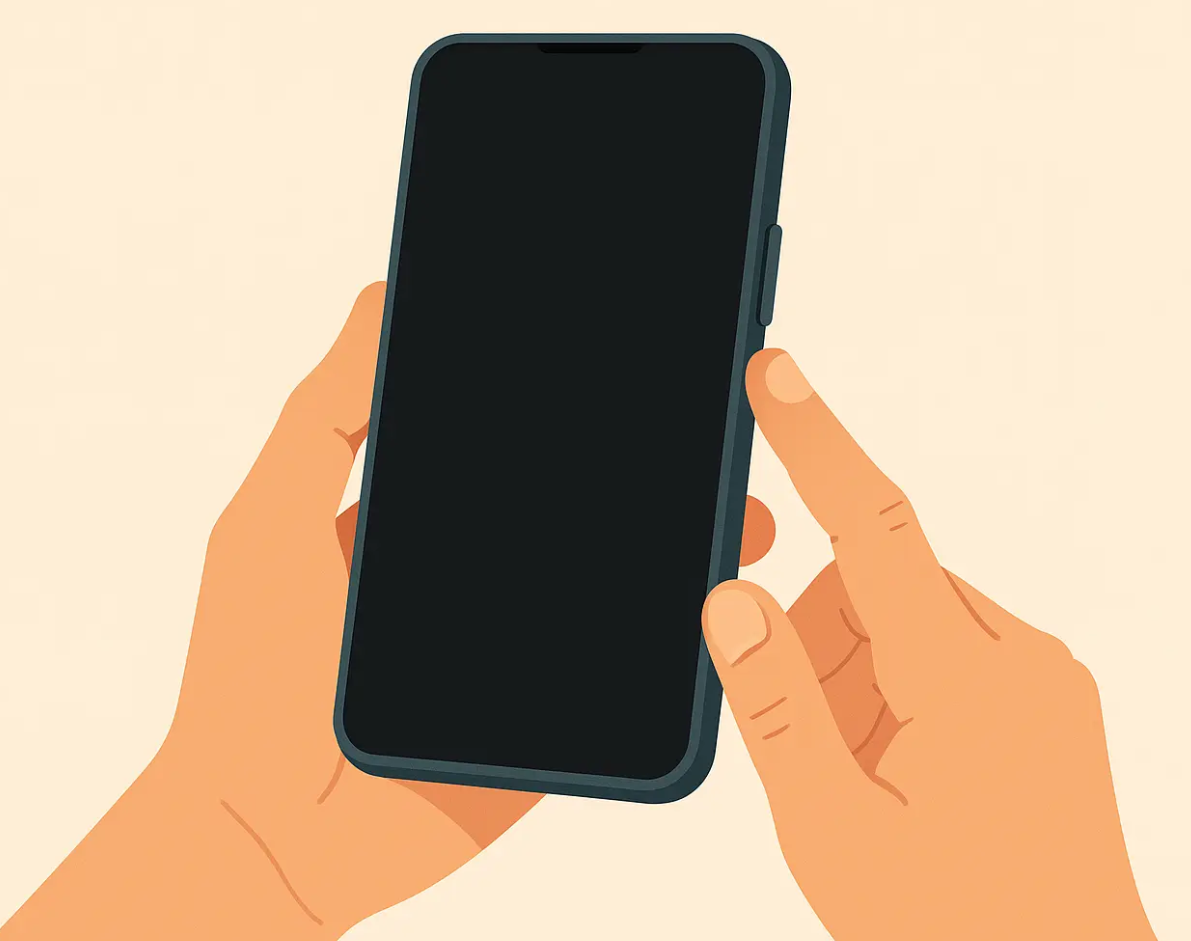
The quickest way to fix a frozen phone is a force restart.

  • Android: Press and hold the Power button + Volume Down for about 10 seconds
  • iPhone: Quickly press Volume Up → Volume Down → hold the Side button

This clears temporary system glitches without deleting your data.


2. Close Background Apps

Too many apps running at once can overload your phone’s memory (RAM).

  • Open recent apps
  • Swipe away unused apps
  • Restart your phone for better performance

Tip: Keeping fewer apps open helps prevent freezing in the future.


3. Check Storage Space

Low storage is a major cause of freezing.

  • Go to Settings → Storage
  • Delete unused apps, photos, or videos
  • Clear cache data

👉 Aim to keep at least 20% of storage free for smooth performance.


4. Update Your Software

Outdated software can cause bugs and freezing issues.

  • Go to Settings → Software Update
  • Install the latest version

Updates often include performance improvements and bug fixes.


5. Scan for Problematic Apps

Some apps are poorly optimized and can freeze your phone.

  • Think about when freezing started
  • Uninstall recently installed apps
  • Use Safe Mode (Android) to identify problematic apps

If the issue stops in Safe Mode, an app is likely the cause.


6. Clear Cache Data

Cached files can become corrupted over time.

  • Go to Settings → Apps
  • Select frequently used apps
  • Tap “Clear Cache”

This helps free up memory and improves performance without deleting personal data.


7. Factory Reset (Last Resort)

If nothing works, a factory reset may be necessary.

  • Back up your data first
  • Go to Settings → General Management → Reset → Factory Data Reset

⚠️ This will erase all data, so only use it as a last option.


Final Thoughts

A freezing phone doesn’t always mean it’s broken. In most cases, it’s caused by software issues, low storage, or overloaded memory.

By following these 7 simple fixes, you can quickly get your phone running smoothly again.


Bonus Tip 💡

  • Restart your phone at least once a week
  • Avoid installing too many unnecessary apps
  • Keep your system updated regularly

These habits can prevent freezing issues before they even start.

Why Your Phone Uses Too Much RAM (And How to Fix It)

Is your phone slowing down, freezing, or struggling to keep apps open? The problem might not be your storage—it could be your RAM usage. When your phone uses too much RAM, performance drops fast.

In this guide, you’ll learn why your phone uses so much RAM and simple ways to fix it.


📱 What Is RAM (And Why It Matters)

RAM (Random Access Memory) is your phone’s short-term memory. It temporarily stores data for apps that are currently running.

  • More RAM = smoother multitasking
  • Less free RAM = lag, crashes, and slow performance

🚨 Common Reasons Your Phone Uses Too Much RAM

1. Too Many Apps Running in the Background

Many apps keep running even when you’re not using them—especially social media, messaging, and streaming apps.

👉 This constantly eats up RAM without you realizing it.


2. Heavy Apps and Games

Apps like:

  • Mobile games
  • Video editors
  • Social media platforms

These require a lot of memory to function smoothly.


3. Poorly Optimized Apps

Some apps are simply badly coded and use more RAM than necessary—even for simple tasks.


4. Widgets and Live Wallpapers

Home screen widgets and animated wallpapers may look nice, but they run continuously in the background, consuming memory.


5. Outdated Software

Older OS versions or outdated apps can lead to inefficient RAM management.


6. Memory Leaks

Sometimes apps don’t release RAM properly after use. This is called a memory leak, and it can slow your phone over time.


🔧 How to Fix High RAM Usage

✅ 1. Close Unused Apps

  • Open recent apps
  • Swipe away apps you’re not using

💡 Don’t overdo it—your system manages RAM automatically, but clearing heavy apps helps.


✅ 2. Restart Your Phone

A simple restart:

  • Clears RAM
  • Stops background processes
  • Fixes temporary glitches

👉 Try doing this at least once every few days.


✅ 3. Uninstall Unnecessary Apps

Go through your apps and remove:

  • Apps you don’t use
  • Duplicate apps
  • Pre-installed bloatware (if possible)

✅ 4. Disable Background Activity

On most phones:

  • Go to Settings → Apps → Battery → Background usage
  • Restrict apps that don’t need to run constantly

✅ 5. Reduce Widgets and Animations

  • Remove unnecessary widgets
  • Use a static wallpaper
  • Turn off excessive animations

👉 This can noticeably improve performance.


✅ 6. Update Your System and Apps

  • Update your OS
  • Update all apps

📌 Updates often fix bugs and improve memory efficiency.


✅ 7. Use Lite Versions of Apps

Many apps offer “Lite” versions:

  • Facebook Lite
  • Messenger Lite

👉 These use significantly less RAM.


✅ 8. Check Developer Options (Advanced)

If you’re comfortable:

  • Enable Developer Options
  • Limit background processes

⚠️ Be careful—wrong settings can affect performance.


📊 Signs Your RAM Is Overloaded

  • Apps reload frequently
  • Phone becomes slow or laggy
  • Apps crash randomly
  • Multitasking doesn’t work well

💡 Pro Tips for Better Performance

  • Keep at least 20–30% RAM free
  • Avoid installing too many apps
  • Use built-in device care tools
  • Consider upgrading if your phone has very low RAM (e.g., 2GB–3GB)

✅ Final Thoughts

High RAM usage is normal—but too much of it slows everything down. The good news? You don’t need a new phone to fix it.

With a few simple tweaks like:

  • Managing background apps
  • Removing unnecessary features
  • Keeping your system updated

👉 You can make your phone feel fast again.


If your phone is still struggling after trying everything, it might be time to consider a device with more RAM.

Too Many Notifications? Here’s How to Take Back Control

Introduction

Do you feel like your phone is constantly buzzing, lighting up, and demanding your attention? You’re not alone. With dozens of apps competing for your focus, notification overload has become a daily struggle. The good news is—you can take back control.

In this guide, you’ll learn why too many notifications are a problem and how to manage them effectively without missing what truly matters.


Why Too Many Notifications Are a Problem

1. Constant Distractions

Frequent alerts break your concentration and reduce productivity. Even a quick glance at your phone can interrupt deep focus.

2. Increased Stress

Endless notifications create a sense of urgency, making you feel like you must respond immediately—even when it’s not important.

3. Battery Drain

Every notification uses system resources, draining your battery faster than necessary.

4. Reduced Attention Span

Over time, constant interruptions can make it harder to stay focused on tasks for long periods.


Step-by-Step Guide to Regain Control

1. Turn Off Non-Essential Notifications

Go through your apps and disable notifications that aren’t important.

How to do it:

  • Open Settings
  • Tap Notifications
  • Select each app
  • Turn off unnecessary alerts

Focus only on apps that truly matter, such as messaging, calls, or essential services.


2. Use “Do Not Disturb” Mode

“Do Not Disturb” helps you silence interruptions during important times like work or sleep.

Best practices:

  • Schedule it for nighttime
  • Allow calls from important contacts
  • Use it during meetings or study sessions

3. Customize Notification Types

Not all notifications need to be loud or intrusive.

Adjust settings like:

  • Disable sound but keep banners
  • Turn off lock screen previews
  • Use silent notifications for less important apps

4. Group and Prioritize Notifications

Most smartphones allow you to group notifications by app.

Benefits:

  • Cleaner notification panel
  • Less overwhelm
  • Easier to review important alerts

5. Limit Social Media Alerts

Social media apps are the biggest source of notification overload.

Turn off:

  • Likes and reactions
  • Suggested content
  • Promotional alerts

Keep only direct messages or important interactions.


6. Use Focus or Productivity Modes

Modern smartphones offer Focus Modes that filter notifications based on what you’re doing.

Examples:

  • Work mode (only work apps allowed)
  • Personal mode (friends and family only)
  • Sleep mode (almost everything silenced)

7. Review Notifications Weekly

Make it a habit to review your notification settings regularly.

Ask yourself:

  • Did I actually need this notification?
  • Did it add value to my day?

If not, turn it off.


Pro Tips for Better Control

  • Uninstall unnecessary apps – Fewer apps = fewer notifications
  • Use widgets instead of alerts – Check info when you want
  • Mute group chats – Especially large or inactive ones
  • Disable email push – Check emails manually instead

Conclusion

Notifications should serve you—not control you. By reducing unnecessary alerts and prioritizing what truly matters, you can improve focus, reduce stress, and make your phone work for you, not against you.

Start small: turn off just a few notifications today, and you’ll immediately feel the difference.

Why Your Phone Loses Signal Frequently (And How to Fix It)

Losing signal on your smartphone can be incredibly frustrating—especially when you’re in the middle of a call, browsing the web, or using important apps. If your phone frequently drops signal or shows weak reception, you’re not alone. In this guide, we’ll break down the most common causes and show you how to fix them quickly.


📶 Common Reasons Your Phone Keeps Losing Signal

1. Poor Network Coverage

One of the most common reasons for signal loss is simply being in an area with weak network coverage. This can happen in:

  • Rural or remote locations
  • Underground spaces (subways, basements)
  • Elevators or thick concrete buildings

Fix:
Move to an open area, near a window, or higher ground to improve reception.


2. Network Congestion

If you’re in a crowded place like a concert, stadium, or busy city center, too many users can overload the network.

Fix:

  • Switch to Wi-Fi if available
  • Enable airplane mode for 10–15 seconds, then turn it off to reconnect to a better tower

3. SIM Card Issues

A damaged or improperly inserted SIM card can cause unstable connections.

Fix:

  • Remove and reinsert your SIM card
  • Clean it gently with a soft cloth
  • Replace it if it’s old or damaged

4. Software Glitches

Temporary bugs in your phone’s operating system can interfere with network connectivity.

Fix:

  • Restart your phone
  • Update your OS to the latest version
  • Reset network settings

5. Wrong Network Settings

Incorrect APN (Access Point Name) or network mode settings can cause signal drops.

Fix:

  • Set network mode to automatic (LTE/5G/4G)
  • Reset APN settings to default

6. Physical Obstructions & Interference

Thick walls, metal objects, or even your phone case can block signals.

Fix:

  • Remove bulky or metal phone cases
  • Avoid covering the antenna area with your hand

7. Carrier Issues

Sometimes the problem isn’t your phone—it’s your carrier experiencing outages or maintenance.

Fix:

  • Check your carrier’s service status
  • Contact customer support if issues persist

8. Hardware Problems

If your phone has been dropped or exposed to water, internal antenna damage could be the cause.

Fix:

  • Visit an authorized repair center
  • Consider replacing the device if repair costs are high

🔧 Quick Troubleshooting Checklist

If you’re in a hurry, try these steps:

  1. Toggle airplane mode on/off
  2. Restart your phone
  3. Check for software updates
  4. Reinsert SIM card
  5. Reset network settings

💡 Pro Tips to Improve Signal Strength

  • Keep your phone updated regularly
  • Avoid using your phone in low-signal areas for long periods (it drains battery faster)
  • Use Wi-Fi calling when available
  • Consider switching carriers if coverage is consistently poor in your area

✅ Final Thoughts

Frequent signal loss can stem from various factors—ranging from simple location issues to hardware damage. The good news is that most problems can be fixed with quick troubleshooting steps. By understanding the root cause, you can restore a stable connection and enjoy uninterrupted usage.


If your phone still struggles with signal after trying all these fixes, it might be time to consult a professional or upgrade your device.

Why Apps Update Automatically (And How to Stop It)

Introduction

Have you ever noticed your apps updating without your permission? You open your phone, and suddenly everything looks different—or worse, something stops working.

Automatic app updates are designed to improve your experience, but they can also cause frustration. In this guide, we’ll explain why apps update automatically and show you how to stop it completely.


Why Apps Update Automatically

1. Security Improvements

App developers frequently release updates to fix vulnerabilities. Automatic updates help protect your device from malware, hacking, and data leaks.

👉 Without updates, your phone can become an easy target.


2. Bug Fixes & Performance Boost

Apps aren’t perfect. Updates often fix crashes, glitches, and slow performance.

✔ Faster loading
✔ Fewer crashes
✔ Better stability


3. New Features & UI Changes

Developers constantly add new features or redesign the interface.

Example:

  • New chat features in messaging apps
  • Updated layouts in social media apps

4. Compatibility with OS Updates

When your phone updates its operating system, apps must also update to stay compatible.

👉 If they don’t, they may stop working entirely.


5. Default Store Settings

Both app stores enable auto-updates by default:

  • Android → Google Play Store
  • iPhone → App Store

Most users don’t even realize this setting is turned on.


⚠️ Why You Might Want to Turn It Off

Automatic updates aren’t always a good thing.

❌ Unexpected Changes

Apps may look completely different after an update.

❌ Data Usage

Updates can consume a lot of mobile data if not restricted to Wi-Fi.

❌ Storage Issues

Large updates can quickly fill your phone storage.

❌ Bugs in New Versions

Sometimes updates introduce new problems instead of fixing them.


🛠️ How to Stop Automatic App Updates

📌 On Android (Google Play Store)

  1. Open Google Play Store
  2. Tap your profile icon (top right)
  3. Go to Settings
  4. Tap Network Preferences
  5. Select Auto-update apps
  6. Choose Don’t auto-update apps

👉 Optional: Select “Wi-Fi only” if you still want limited updates.


📌 On iPhone (App Store)

  1. Open Settings
  2. Tap App Store
  3. Find App Updates
  4. Turn it OFF

👉 This stops all automatic updates instantly.


💡 Pro Tips

✔ Turn on updates only for important apps (banking, security)
✔ Manually update apps once a week
✔ Always read update reviews before installing


🚀 Final Thoughts

Automatic app updates exist to make your life easier—but they don’t always work in your favor.

By turning them off, you gain:

  • Full control over changes
  • Better data management
  • Fewer unexpected issues

👉 The best strategy? Manual updates with awareness.