The App That Caused My Phone to Keep Restarting (And How I Found It)

Over the past few weeks, I experienced a problem with my phone that quickly became one of the most frustrating technical issues I have ever faced. My device began to restart randomly without warning, sometimes in the middle of calls, other times while I was in the middle of using an app. The first time it happened, I thought it was just a one-time glitch, but soon the restarts became frequent and unpredictable. Not only did it disrupt my daily routine, but it also made me anxious about losing unsaved work, photos, and messages. At first, I tried simple solutions, like turning the phone off and on again, but the problem persisted.

I decided to start investigating the problem systematically. I first observed the patterns surrounding the restarts. I noticed that the phone often restarted after updating certain apps or the system software. Sometimes it restarted when I was playing games or using resource-intensive apps, which made me think that overheating might be a factor. Other times, the restarts seemed entirely random, even when the phone was idle. These observations suggested that the issue could be caused by multiple factors, including software glitches, overheating, problematic apps, or even battery issues.

Because the problem seemed complex, I reached out to multiple sources for advice. I first contacted my phone’s official customer support. They suggested checking for system updates, clearing the cache, and uninstalling recently installed apps. While their guidance was helpful, it felt somewhat generic and didn’t address all the possibilities I observed in my daily use.

Next, I visited a local electronics repair shop. The technician performed diagnostics and suggested that the issue might be related to battery health or internal hardware damage. They even offered to replace the battery, which would have been costly.

I also looked at online forums and technology blogs, where many users reported similar symptoms. Advice ranged from software troubleshooting, like booting into Safe Mode and uninstalling problematic apps, to more extreme solutions, like performing a factory reset. Reading these discussions gave me insight into the variety of causes and solutions, but it also confused me because different sources emphasized different factors.

After comparing these consultations, I realized that the reason for the conflicting advice was the complex nature of the problem.

Some issues, such as software glitches after updates, can be resolved simply with system updates or cache clearing. Other problems, like hardware damage or battery degradation, require physical intervention. Additionally, symptoms like overheating or storage issues can mimic software-related problems, making it difficult for a single source to pinpoint the exact cause. Each consultant had their own diagnostic approach, which naturally led to slightly different recommendations. The phone’s environment—such as the apps I use, how I charge it, and its storage level—also influenced the potential cause, which further explains why advice was not consistent.

Through this process, I learned several important lessons about troubleshooting a phone that keeps restarting. First, software-related issues are often the simplest to fix, so updating the system, clearing caches, and uninstalling problematic apps should always be the first step. Second, overheating is a serious factor to consider; using a phone while charging or in direct sunlight can trigger automatic restarts. Third, battery health is crucial. An old or damaged battery can cause unstable power delivery, resulting in random restarts. Monitoring battery performance and replacing it if necessary can solve persistent issues. Finally, storage space matters. A nearly full storage can lead to system instability, frequent app crashes, and random reboots. Maintaining at least 10–15% free storage is essential for stable operation.

I also realized that while extreme solutions like factory resets can fix deep system issues, they come with significant downsides, such as the loss of data and settings. Therefore, they should only be considered as a last resort. Safe Mode is another useful tool I discovered; it allows the system to run without third-party apps, making it easier to identify whether a particular app is causing the problem.

After thoroughly researching, consulting multiple sources, and understanding the potential causes, I decided to take a step-by-step approach before considering any major interventions.

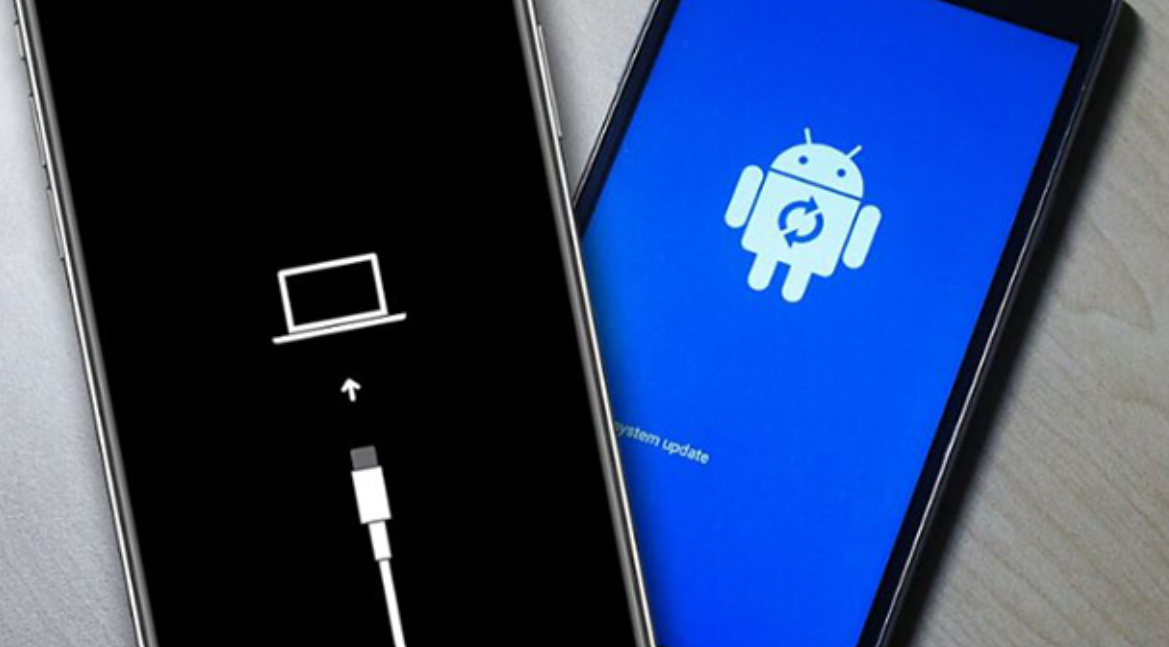
I first updated the system software and all apps, then cleared the cache and deleted unused apps. I also freed up storage space and monitored the device for signs of overheating. Finally, I booted the phone into Safe Mode to identify any problematic apps.

Through this process, I found that a recently installed app was conflicting with my system, causing the random restarts.

Once I uninstalled the app and rebooted the phone, the issue disappeared entirely. I did not need to perform a factory reset or replace the battery, which saved both time and money. This experience reinforced the importance of systematic troubleshooting: starting with simple fixes, monitoring symptoms carefully, and only escalating to extreme solutions if necessary.

In conclusion, while a phone that keeps restarting can be a stressful and disruptive problem, it is rarely permanent. Most cases are caused by software issues, overheating, storage constraints, or battery problems. By observing patterns, consulting multiple sources, and applying a methodical approach, I was able to resolve the issue without resorting to drastic measures. For anyone experiencing similar problems, I recommend starting with updates, app management, and careful monitoring, reserving more invasive actions like factory resets or hardware replacement for situations where simpler solutions fail. This approach not only ensures a higher chance of success but also minimizes the risk of data loss and unnecessary expenses.
From Panic to Protection: How I Safeguard My Phone Data

Losing phone data is one of the most stressful experiences anyone can encounter.

A few months ago, I faced a situation that made me realize the importance of backing up my phone. One morning, I accidentally dropped my phone, and although it still turned on, I noticed that some apps were malfunctioning and a few of my recent photos and messages seemed to be missing. At first, I panicked because I had never consistently backed up my data. I quickly understood that relying solely on the device itself without any backup plan was risky.

That moment prompted me to investigate all possible ways to secure my data safely.

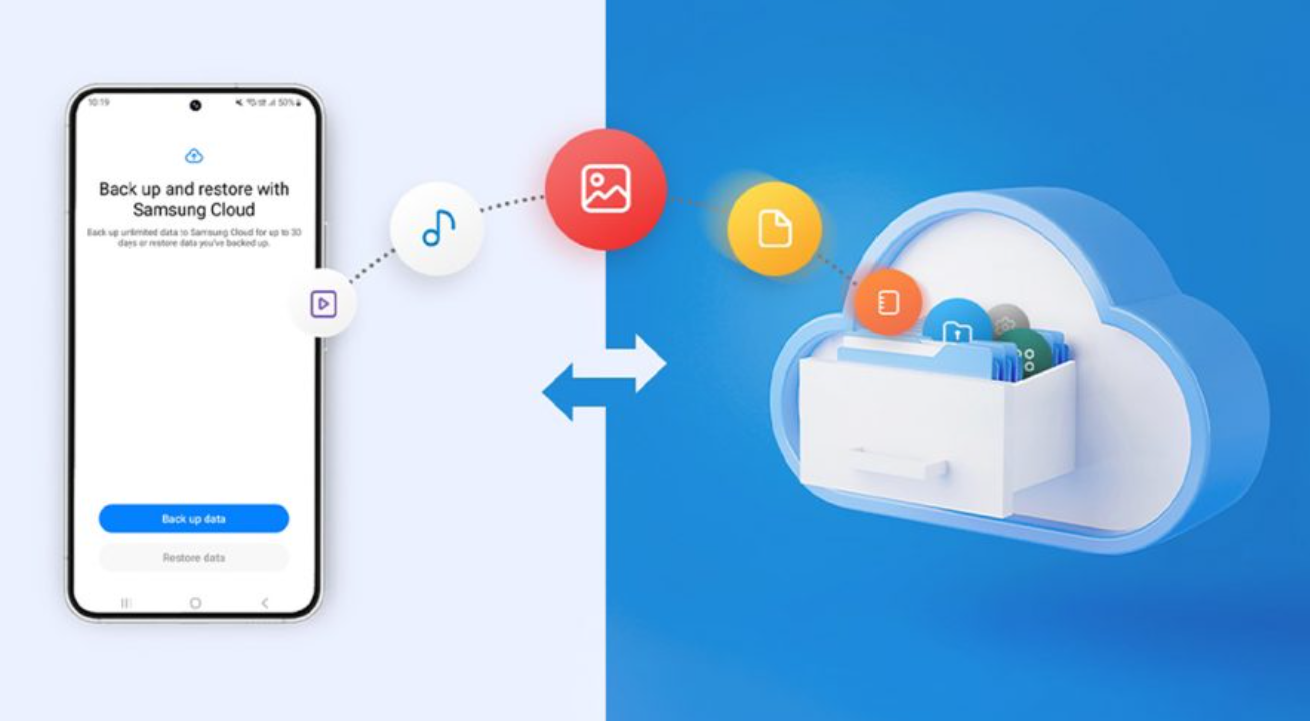
I started by exploring the most common method that people recommend: cloud backup. For my Android device, I checked the settings under Google Backup and enabled the “Back up by Google One” option. I also initiated a manual backup to ensure everything was stored in the cloud. For my friend who uses an iPhone, she recommended using iCloud Backup, where she had enabled automatic backups and ensured that all her contacts, photos, messages, and device settings were included. Observing both systems helped me understand that cloud backups were incredibly convenient and easy to manage. They also allowed data to be restored when switching devices, which was particularly reassuring.

However, I wanted to be thorough. I began consulting multiple sources to compare backup methods, including online tech forums, YouTube tutorials, and even tech store representatives. From these consultations, I discovered several options: cloud backup, backing up photos and videos separately through services like Google Photos or iCloud Photos, offline backups to a computer, and external storage methods such as USB drives or SD cards. The advice was not always consistent. Some tech advisors emphasized the security of cloud backups, while others stressed the importance of having a local copy on a computer or external storage in case of hacking or accidental deletion. One store representative even suggested using a combination of all methods for maximum safety, referencing the 3-2-1 rule: maintaining three copies of data, storing them on at least two different types of storage, and keeping one backup offsite.

The variations in recommendations puzzled me at first. I wondered why the advice was so different depending on the source. After analyzing the information, I realized it was largely due to differing priorities and potential risks. Cloud services prioritize convenience and accessibility, which is why they are recommended for most casual users. Offline backups, on the other hand, offer complete control and extra security, appealing to those who are more concerned about hacking or accidental cloud failures. Meanwhile, external storage provides an additional layer of protection but requires regular maintenance and vigilance to ensure the backups are up to date. Understanding these nuances helped me appreciate why no single method is universally considered the “best.”

To make an informed decision, I studied backup processes more deeply. I learned that automatic backups are crucial because manual backups are easy to forget, especially when life gets busy. I explored settings for automatic cloud backups, learning how to set daily or weekly schedules and how many services allow backups to run while the phone is charging. I also researched verifying backups, which is often overlooked; it is not enough to simply back up the data—you must ensure it is accessible, current, and restorable. I familiarized myself with file structures on both Windows and Mac for manual backups, and I practiced copying important folders from my Android phone to my computer, including DCIM (photos), Downloads, Documents, and other essential files. Finally, I studied using USB flash drives with OTG support and microSD cards as additional offline storage options.

After gathering all this knowledge, I established a clear strategy for myself. I decided to implement a combination of methods to ensure redundancy and security. First, I set up cloud backup through Google One for automatic daily backups. This covers contacts, app data, device settings, and messages. Then, I enabled Google Photos to back up my pictures and videos in high quality automatically. Next, I performed a full manual backup to my computer via USB, creating a local copy that I could access without relying on an internet connection. Finally, I stored critical files on a USB drive kept separately from my home, following the 3-2-1 backup rule. This approach gave me peace of mind, knowing that even if one backup method failed, others were available.

The final decision was influenced by a few key factors. Convenience was important, as I did not want to spend excessive time performing backups manually every week. Security was another priority, particularly for sensitive documents and personal photos. By combining cloud and local backups, I achieved a balance between accessibility and control. Additionally, implementing automated processes and verifying them regularly ensured that my data would remain safe over time. In essence, my final setup was not dictated by a single method but by the understanding that multiple layers of protection provide the most reliable security.

In conclusion, the journey of exploring phone backup options taught me several lessons. First, unexpected incidents can happen at any time, and relying solely on the phone itself is risky. Second, consulting multiple sources and comparing advice can help identify both advantages and limitations of different backup methods. Third, studying and understanding the backup processes allows for a more strategic and informed approach.

Ultimately, my decision to use a combination of cloud services, local computer backups, and external storage ensures that my phone data is safely protected.

Starting with one method and gradually building a comprehensive backup system has given me confidence that, regardless of what happens, my important data will remain secure and accessible. I can now focus on using my phone without the constant worry of losing precious information, knowing that my backup strategy is reliable, verified, and future-proof.

How I Fixed My Mobile Data When It Suddenly Stopped Working

I encountered a frustrating situation where my mobile data suddenly stopped working. I rely heavily on my smartphone for both work and personal tasks, and losing internet access created a significant disruption in my daily routine.

At first, I noticed that even though the signal bars appeared full, no apps would load, and web pages failed to display.

Occasionally, the phone displayed “No Service” or “Emergency Calls Only,” which added to my anxiety because it made me question whether the issue was related to my device, the SIM card, or the carrier network itself. The LTE and 5G icons that usually indicate active mobile data were sometimes missing, further confirming that the problem was not a minor glitch.

To resolve the issue, I began by exploring the simplest solutions first. I started with the basic approach of toggling mobile data off and on, as many guides recommend. I accessed the settings on my phone, turned mobile data off, waited for about ten seconds, and then turned it back on. While this initially seemed promising, the problem persisted, indicating that the issue was deeper than a temporary software glitch. Next, I checked the signal strength by moving to various locations around my home, including near windows and open areas. Although the signal improved slightly in certain spots, the internet still did not load properly, which suggested that the problem might not be purely due to weak signal reception.

Following this, I attempted to reset all wireless connections by using the airplane mode toggle. I enabled airplane mode for approximately thirty seconds and then disabled it, hoping that forcing the device to reconnect to the network would resolve the issue. Unfortunately, this step also failed to restore mobile data. At this point, I realized that a simple software refresh was unlikely to solve the problem, so I restarted my phone completely. Restarting my device cleared some minor bugs, but the mobile data issue persisted, reinforcing the possibility that either the network settings or the SIM card itself might be at fault.

Given that simple troubleshooting had not resolved the issue, I decided to investigate whether data limits or restrictions were causing the problem. I navigated to the data usage settings and found that no limits had been reached, and background data restrictions were not active. This step confirmed that the issue was not related to exceeding my monthly data allowance or restrictions imposed by the operating system. I then explored resetting the network settings, which many sources described as a more powerful solution. Performing a network reset erased saved Wi-Fi passwords and Bluetooth pairings, but often solves stubborn connectivity issues. After the reset, I carefully re-entered Wi-Fi credentials and reconnected Bluetooth devices. Despite these efforts, mobile data still did not function properly, leading me to consider the possibility that the APN (Access Point Name) settings might be incorrect.

I researched the official APN settings provided by my carrier and compared them with the configuration on my phone. At that moment, I realized that some of the values were outdated, likely due to previous SIM card changes or software updates. I manually entered the correct APN values, ensuring they matched the carrier’s specifications exactly. After saving the changes and restarting the phone, I experienced a temporary improvement in connectivity, but the issue returned intermittently. This indicated that while APN misconfigurations could be part of the problem, other factors might still be affecting the connection.

At this stage, I considered the possibility that the SIM card itself was causing the problem. I powered off the phone, removed the SIM card, gently cleaned it, and reinserted it into the device. This step is often overlooked, but it ensures a proper physical connection between the SIM and the phone’s hardware. After turning the phone back on, the mobile data began functioning more consistently. However, I noticed that certain areas had unstable 5G coverage. To address this, I switched the network mode from 5G to LTE in the mobile network settings, which provided a more reliable connection in areas with weaker 5G signals.

After performing all these steps, I decided to compare my findings and approach with professional advice from various sources.

I contacted my mobile carrier and spoke to two different representatives. The first agent suggested that the problem was likely due to a network outage or temporary maintenance, recommending that I wait several hours before taking further action. The second representative insisted that the issue could be related to the SIM card itself and offered a replacement. Both solutions were plausible, but they differed significantly in approach and implied costs. The variance in advice made it clear that even professionals can interpret mobile data issues differently depending on their experience, knowledge of network operations, and the information available from the customer’s device.

To better understand these discrepancies, I studied online resources and guides, including carrier support pages and technology blogs. I learned that mobile data problems are usually caused by a combination of software glitches, misconfigured settings, weak signal reception, or hardware-related issues such as SIM card placement. This research helped me critically evaluate the advice I received from customer service. By cross-referencing information, I concluded that a multi-step approach—addressing both software and hardware factors—was generally more effective than relying on a single fix.

Finally, after careful consideration, I chose a comprehensive solution that incorporated my research findings.

I ensured that the APN settings were correct, reset the network settings, cleaned and reinserted the SIM card, and adjusted the network mode from 5G to LTE when necessary. This combination restored stable mobile data connectivity, allowing me to resume my daily activities without interruption. I selected this approach because it addressed all potential causes, from software misconfigurations to hardware connection issues, while avoiding unnecessary costs such as replacing the SIM card without justification.

In conclusion, my experience taught me that resolving mobile data issues requires patience, systematic troubleshooting, and a willingness to cross-check information from multiple sources. By understanding the underlying causes and carefully applying step-by-step solutions, it is possible to restore mobile data without relying solely on professional intervention. The process also highlighted the importance of critical thinking when evaluating different recommendations, as similar problems can be interpreted in varied ways depending on the perspective and experience of the advisor. Following this structured approach not only resolved my immediate connectivity problem but also provided me with the knowledge to prevent and address similar issues in the future.

How I Secured My Phone Against Hackers and Malware

Recently, I began exploring ways to better protect my smartphone from hackers and malware. My experience started when I noticed unusual activity on my device—apps behaving strangely, unexpected pop-ups, and occasional slowdowns that seemed suspicious. As someone who stores almost all personal and professional information on my phone, including banking apps, messages, and sensitive photos, I became concerned that my device could be at risk. At first, I assumed it was just a minor glitch, but as I observed the behavior over several days, it became clear that I needed to take proactive steps to improve security.

The first thing I did was seek advice from multiple sources. I consulted online articles, technology forums, and official guides from reputable security companies. I also reached out to customer support from my phone manufacturer and asked them directly about best practices for keeping my device safe. Interestingly, I noticed that the advice varied slightly depending on the source. While most recommendations emphasized updating software and using strong passwords, some sources focused more on app permissions or the importance of security apps, whereas others highlighted cautious use of public Wi-Fi. This variety initially caused some confusion because each source seemed to prioritize different strategies.

Upon reflecting on these differences, I realized that the variation arose mainly from the perspective and expertise of each source. Official manufacturer guidance emphasized system updates and built-in security features because these are universally applicable and technically controlled by the company. Security blogs and forums often stressed vigilance against phishing and careful management of app permissions because they aim to cover the broad range of threats that users might encounter. Meanwhile, customer support advice leaned towards practical, easy-to-implement actions, such as enabling biometrics and avoiding untrusted downloads, as they know users may not follow complicated instructions consistently. Understanding this helped me see that no single source provides a complete solution, and the best approach is to combine multiple strategies.

After reviewing and comparing these recommendations, I studied each step carefully. I learned that keeping the phone updated is one of the most crucial defenses because software patches frequently fix vulnerabilities exploited by hackers. Strong passwords and biometric authentication provide a second layer of protection, making it more difficult for unauthorized users to access my device. I also examined the risks associated with downloading apps from unofficial sources and understood why malware often infiltrates phones through unverified apps. Public Wi-Fi was another area where I had to adjust my habits; I discovered that using a VPN significantly reduces the risk of data interception. Additionally, I devoted time to learning about phishing attacks and identifying suspicious links or messages, as these are common vectors for personal information theft. Installing a reliable security app and carefully managing app permissions were the final pieces of my security plan, ensuring real-time protection and limiting unnecessary access to my data.

Ultimately, my decision-making process was guided by the combination of practicality and effectiveness.

I chose to enable automatic software updates so that critical security patches are applied without delay. I adopted a password manager to maintain strong, unique passwords for every account, and I activated fingerprint recognition on my device for convenience and security. I restricted app downloads exclusively to official app stores and reviewed permissions for every installed app, revoking any access that seemed unnecessary. Additionally, I started using a reputable security app that provides malware scanning and anti-theft tools, and I became more cautious about logging into sensitive accounts on public Wi-Fi, opting to use a VPN whenever necessary.

In conclusion, protecting my smartphone from hackers and malware required a deliberate and informed approach.

By carefully examining my situation, consulting multiple sources, analyzing why advice differed, studying the mechanics of various security measures, and implementing practical steps, I established a comprehensive strategy that significantly reduces my risk. This experience taught me that effective cybersecurity is not about installing a single app or memorizing one tip—it is about cultivating habits, staying informed, and actively managing both software and personal behavior.

Following these seven steps has provided me with peace of mind and a greater sense of control over my digital life, ensuring that my personal information and daily routines remain safe from cyber threats.

How I Fixed My Phone’s Charging Nightmare

Recently, I encountered a frustrating issue with my smartphone: it would not charge properly. At first, I noticed that sometimes the charging process would stop abruptly, and at other times, the phone charged very slowly despite being plugged in for hours. As someone who relies heavily on my phone for both work and personal matters, this problem immediately became a significant concern. I needed to find a solution quickly because a non-functioning phone affects not only communication but also productivity. Initially, I assumed it might be a temporary glitch, but as the problem persisted, I realized that a deeper investigation was necessary.

To address the issue, I decided to conduct a thorough exploration based on what I could observe and what resources I had available. My first step was to check the most obvious component: the charging cable. I noticed that while the cable appeared physically intact, the problem remained even after swapping it with another one. This made me think about the possibility of internal damage within the cable, as even subtle fraying or internal wire breaks can interfere with proper charging. I also tried using an original cable supplied by the manufacturer and avoided cheap or uncertified alternatives, which some sources recommend, but the charging issue persisted intermittently.

Next, I considered the charging port. Dust or lint accumulation inside the port can prevent a proper connection, so I carefully examined it under good lighting. Using a soft brush and a toothpick, I gently removed any debris, making sure not to use metal objects that could potentially damage the port. While this cleaning slightly improved the situation at first, the problem was not completely resolved, suggesting that the port might not be the only culprit.

I then looked into the power source. Often, charging through a laptop USB port or an older adapter does not supply sufficient power, leading to slow or interrupted charging. I tested a few different wall chargers with higher wattage output and plugged them directly into a reliable wall socket. This adjustment improved the charging speed marginally, but the inconsistency continued, which prompted me to consider other underlying issues beyond the cable and power source.

After these hardware checks, I explored possible software-related causes.

I restarted my phone and updated it to the latest operating system version. I also monitored background apps that could be draining battery excessively while charging. In many cases, software glitches can interfere with normal charging, and these steps are usually recommended to address such issues. Unfortunately, the charging problem still occurred, which suggested that the root cause might be related to the hardware or the battery itself rather than the software.

Concerned about potential overheating issues, I observed the phone while it was charging. I removed its protective case and ensured it was in a cool, ventilated environment, avoiding the use of heavy apps during charging. Overheating can trigger a protective mechanism that stops charging temporarily, so these steps were essential to rule out thermal issues. Nevertheless, although the phone remained cooler, the intermittent charging continued, pointing again to a deeper problem.

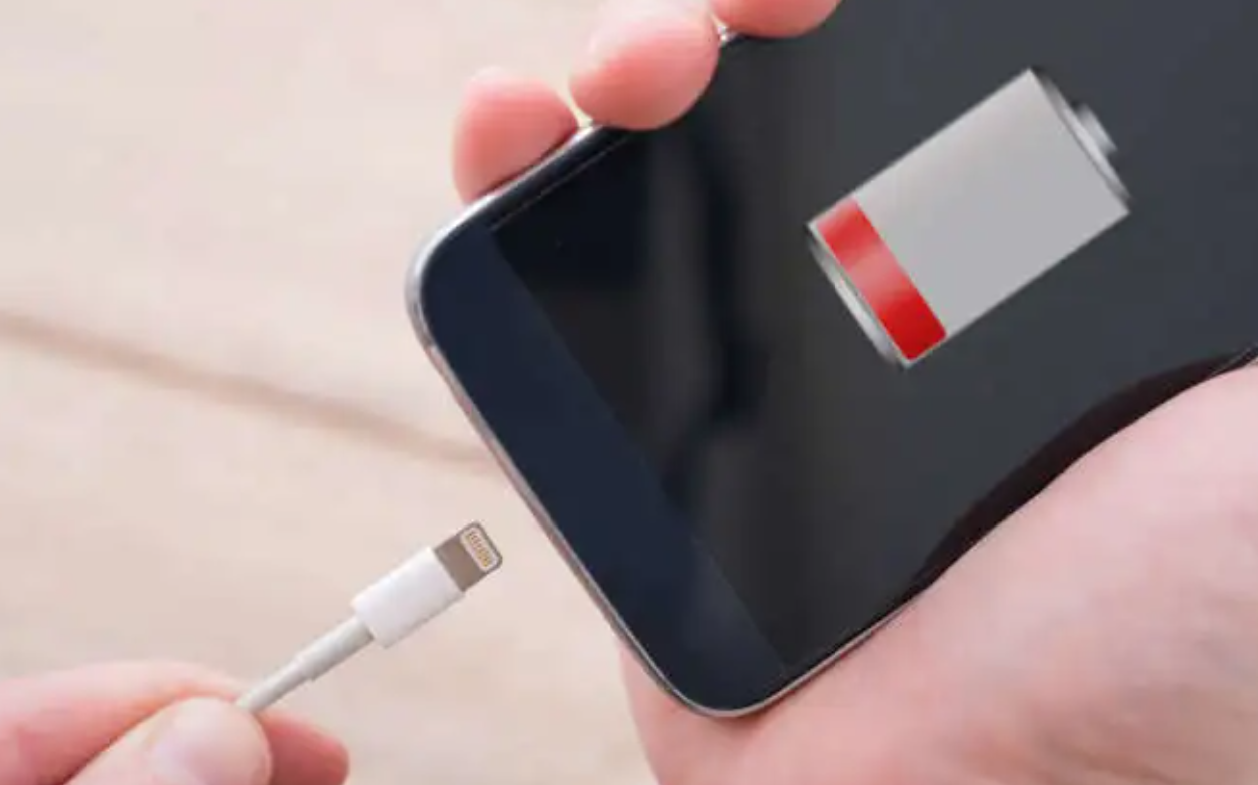
Given the continued issues, I turned my attention to battery health. Modern smartphones allow users to check battery condition in the settings menu.

Upon checking, I discovered that the battery had significantly degraded over time, reducing its ability to hold and receive charge efficiently.

Degraded batteries are a common reason for slow or interrupted charging, especially in phones that are several years old.

At this point, I decided to consult multiple professional sources to compare opinions and recommended solutions. I visited two authorized service centers and one independent repair shop. Each place conducted diagnostic tests, but the conclusions varied. One service center recommended replacing the battery entirely, citing its poor health and age. The second center suggested first attempting a full system reset, arguing that software glitches could exacerbate the problem. The independent repair shop emphasized that both the battery and the charging port should be examined in combination, as subtle port damage can mimic battery problems.

The differences in these recommendations initially confused me. Why did each place offer a slightly different approach? Upon reflection and some additional research, I understood that diagnostic methods and professional judgment can vary based on the tools available, the technician’s experience, and the emphasis placed on certain factors such as software versus hardware issues. For example, a center that focuses on hardware may prioritize battery replacement, while another emphasizing software diagnostics may first recommend system resets. Each approach has its merits, but they highlight how complex a seemingly simple issue like charging can be.

To make an informed decision, I spent additional time studying the topic myself. I reviewed technical guides, reputable blogs, and forums where users discussed similar charging issues. I learned about common causes such as faulty cables, debris in the port, weak power sources, software glitches, overheating, and battery degradation. I also studied practical solutions: switching to high-quality cables, cleaning the port carefully, using reliable chargers, checking battery health, and considering professional repair if physical damage existed. The more I learned, the more I realized that while multiple factors could contribute, the most persistent and common culprit for my situation was the aging battery.

After considering all the information, I made my final decision.

I opted to replace the battery at an authorized service center. I chose this route because the battery health check clearly indicated significant wear, and other potential issues like cable, port, and power source had already been tested and partially addressed. While software glitches and overheating could contribute, these factors were secondary in my case. Replacing the battery directly addressed the root cause and provided the most reliable long-term solution. Additionally, doing it through an authorized center ensured quality replacement parts and maintained warranty coverage.

In conclusion, experiencing a phone that would not charge properly was a stressful and inconvenient situation. However, by systematically examining each possible factor—cable, charging port, power source, software, overheating, and battery health—I was able to narrow down the issue. Consulting multiple repair professionals highlighted different diagnostic approaches and reinforced the importance of understanding why recommendations might differ. By studying the problem thoroughly and comparing various sources, I gained a clear understanding of the issue and felt confident in my final choice: replacing the degraded battery. After the replacement, my phone returned to normal charging behavior, providing fast, consistent charging and restoring my peace of mind. This experience also gave me practical knowledge about maintaining my phone’s battery health in the future, including avoiding cheap cables, keeping the port clean, and managing charging habits to extend battery longevity.